Contents of the Text Layout Dialog Box
Use the fields and options to configure the Text Layout dialog box.
Contents
| Field | Description | ||
|---|---|---|---|
| Field |
Use this field to control the text that Open Plan displays with a bar. You can select a field to be displayed from a list. |
||
| Position |
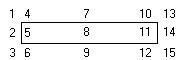
Use this field to control where Open Plan displays the text associated with a bar. The following diagram illustrates where these positions are located. (The numbers in the diagram are for identification purposes only. They do not appear in the Text Layout dialog box.)
|
||
| Bar Type |
Use this field to display the name of the bar to which this text belongs. |
||
| Font |
Use this field to control the typeface and size of the font of the text displayed in and around the bar. The ellipsis button to the right of the font edit box displays the Font dialog box where you can make your font selection. |
||
| Text |
Use this field to control the color of the text displayed in and around the bar. The down arrow at the right edge of the text edit box displays a color selector containing 70 colors from which you can choose. If you want a displayed field to include literal text (for example, “Total Float =”) as a label for activity data, define a calculated field for the project using a text string and the appropriate data. Attention: For information about defining calculated fields, see "Defining Calculated Fields" in the
Deltek Open Plan Developers Guide.
|
||
| Opaque Text |
Use this option to control whether the area surrounding the text should hide any other text or line on the barchart view.
Note: To suppress the display of text in and around the bar, select a row that defines text layout, and press
Delete.
|