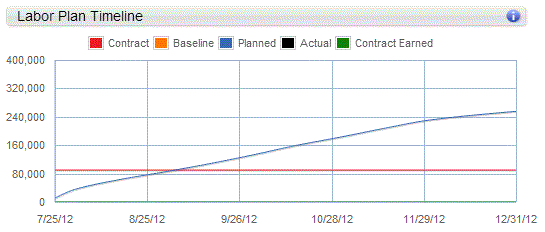
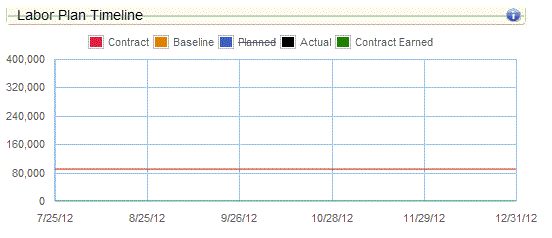
The Labor Plan Timeline chart on the Labor planning page displays the cumulative baseline, planned, and actual labor amounts for each WBS element, as well as the contract amount earned over the life of the project. Use this chart to analyze the accuracy of forecasts and to improve future planning efforts.
Contents
The periods that can display on the chart reflect the selected WBS element's date range. As you select a project, phase, or task on the labor planning grid, the amounts on the chart update to reflect the data for that WBS row.
As you review the chart, you can mouse over or tap on its data points to view specific amounts. If the project has a Navigator plan, the data points are based on the calendar scale assigned in Plan Settings. If the date range for the selected WBS element on a Vision plan is 0 to 180 days, the data points are weekly; if the range is greater than 180 days, the data points are monthly.
The chart displays edits to the plan when the edits are saved.
If your firm uses Vision Multicurrency, the amounts display in the project's billing currency or project currency. The currency is based on the
Use Billing Currency not Project Currency option in
.
Note: If a project is mapped on multiple Vision plans and the
Include in utilization and project reports
option is selected, the Baseline,
Planned, and
EAC lines are a combined total. The
Contract Earned line may also be a combined total if the percent complete formula is one of the following: (Planned – Estimate-to-Complete)/Planned or (Baseline – Estimate-to-Complete)/Baseline. Actual and contract lines are not combined.
| Field | Description |
|---|
| Contract
|
This line represents the labor contract amount from the Contract planning grid.
|
| Baseline
|
This line represents the bill value of planned labor in the project's baseline plan. The line spans the selected WBS row's entire date range.
Calculation: Baseline = Planned labor bill amount saved in the baseline
|
| Planned
|
This line represents the planned labor bill amount through today's date.
Calculation: Planned = Planned labor amount at billing through today
|
| Actual
|
This line represents the billing value of the posted and unposted labor charges through today's date. Calculation: Actual = Billing value for posted and unposted labor through today
|
| EAC
|
This black dotted line represents the EAC bill amount beyond today.
Calculation: EAC = JTD labor amount at billing through today + ETC labor amount at billing from tomorrow forward
|
| Contract Earned
|
This line represents the contract earned amount, based on the Percent Complete Formula selected in the plan. The formulas that impact this amount are as follows:
- (Planned - Estimate-to-Complete)/Planned
- Job-to-Date/(Job-to-Date + Estimate-to-Complete)
- (Baseline - Estimate-to-Complete)/Baseline
Calculation: The percent complete is calculated for each period. This percent is then multiplied by the contract for the selected WBS element to determine the amount of the contract that has been earned for the period.
If a project is mapped to multiple Vision plans that have the
Include in utilization and project reports
option selected, but there are different percent complete formulas assigned to the plans, Navigator applies the percent complete formula from the plan with the earliest creation date.
The
Contract Earned line does not display in the following situations:
- If the Percent Complete Formula on the Vision plan is set to User Entered.
- If the Percent Complete Formula is set to (Baseline - Estimate to Complete)/Baseline but there is no baseline
- If there is no planned data
- If there is no JTD + ETC data
|
| Tooltips
|
Tooltips display when you hover over or tap various parts of the Navigator interface, including buttons, status and warning indicators, and data on the dashparts and charts. You can also click the
 buttons to view specific calculation information, and click the
More links to access the pertinent Navigator online help. buttons to view specific calculation information, and click the
More links to access the pertinent Navigator online help.
If you are using a tablet device, the tooltip hover action is not available, but you can tap the
buttons and
More links to view the calculations and online help.
|
Note: You can turn chart lines on and off, except for the dotted EAC line on the Labor Plan Timeline. Click a line name in the chart legend to turn the chart line on or off.