To create top level cost reports, complete the following steps:
From the Budgeting & Planning user interface, click Projects, and then click the Cost Analysis module.
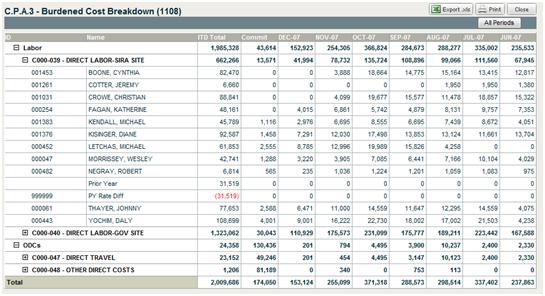
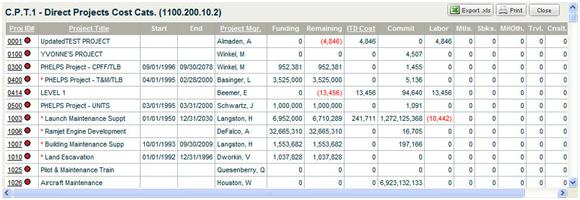
In the Reports & Actions menu, click Direct Projects Cost Cats (C.P.T.1).
The Direct Projects Cost Cats. screen displays the project's fully burdened cost broken out by raw cost elements.
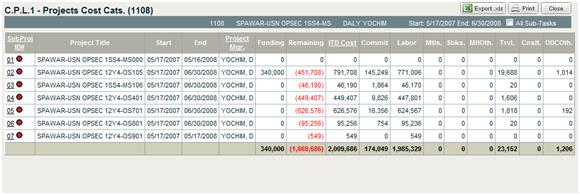
Click a project number in the first column of the report to see a level down cost history by category.
For example, if you click 1008 in the top level report, the following screen displays.
 next to a project number in the top level report to create a report that
shows the burdened cost. The burdened cost will be shown at the top level
only.
next to a project number in the top level report to create a report that
shows the burdened cost. The burdened cost will be shown at the top level
only.Click  next to a Subproject ID number
in the level down report to see an Active
Level burdened cost report for that particular subproject at
that level.
next to a Subproject ID number
in the level down report to see an Active
Level burdened cost report for that particular subproject at
that level.
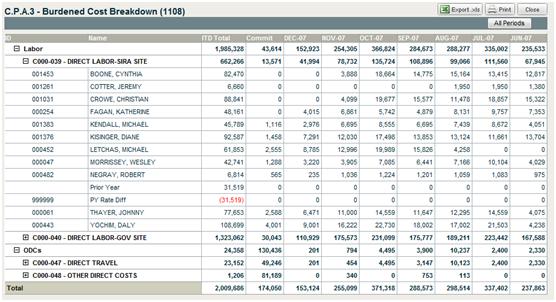
For example, if you click
for 001, the following screen displays.
Click Close to close the reports.
From the Reports & Actions menu, click Direct Projects Cost Hist. (C.P.T.3).
The Direct Projects Cost Hist. screen displays the project's fully burdened cost by the periods of performance established for the project.
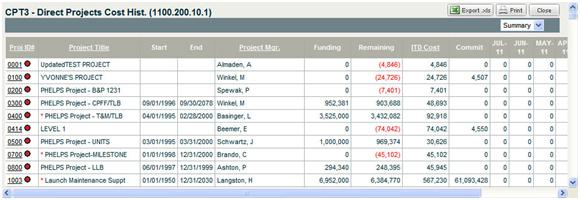
Select a cost category from the drop-down menu at the top right of the report. The report regenerates to display the fully burdened cost for the chosen category for all top level projects.
The choices are:
Summary — Summary of all the cost categories
StfHrs — Staff hours
Mtls — Material expenses
Sbks — Subcontractor expenses
MHOth — Material handling and other expenses
Trvl — Travel expenses
Cnslt — Consultant fees
ODCOth — Other direct costs
Click a project number in the first column of the report to see a level down cost history.
For example, if you click 1008, the following screen displays.
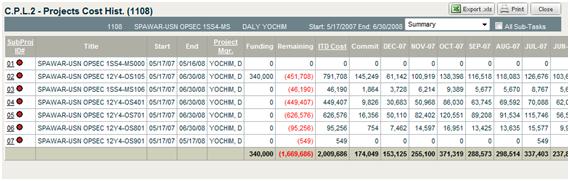
next to a project number in the top level report to create a report showing
the burdened cost at the top level only.Click
next to a Subproject ID number
to see an active level burdened cost report for that particular subproject.
For example, if you click
for 001, the following screen displays.