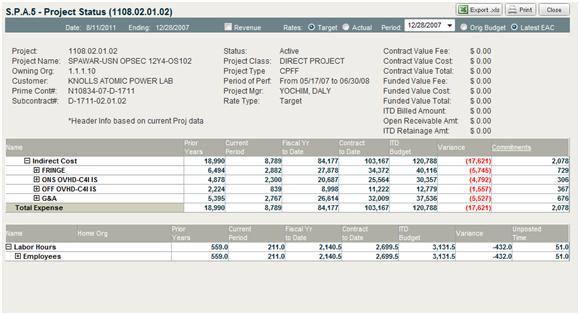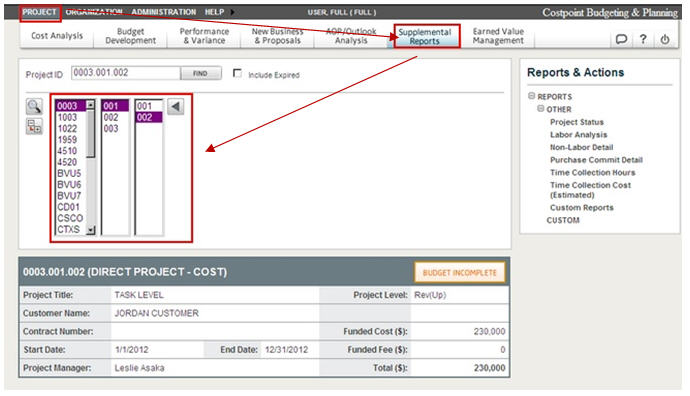
To access a project status report, complete the following steps:
For the Management Context, click Projects, and then click the Supplemental Reports module.
Navigate to the lowest level of the project ID in the Project Navigation field.
From the Reports & Actions menu, click Project Status.
The Project Status Report screen displays.
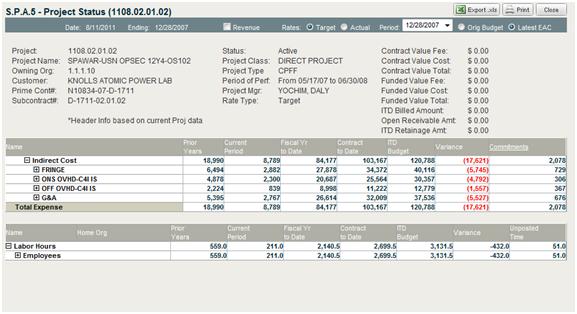
The report header has the following information that you can click or select to change the information displayed in the report:
Revenue — Select this check box to display revenue as a line item in the report.
Target — Click this option to display the costs as target indirect rate costs, which is the default.
Actual — Click this option to display the actual costs.
Period Ending — Select a date for the report from this drop-down list.
Accounting details that include:
Contract Fee
Contract Cost
Contract Total
Funded Fee
Funded Cost
Funded Total
ITD Billed Amount
Open Receivables Amount
ITD Retainage Amount
The table in the report displays the project costs. The budget columns default to the latest Estimate at Completion (EAC) if one exists, or the project budget if no EAC exists.
All indirect costs are calculated based on the selection of Target or Actual in the report header. The content of the report re-renders each time a new choice is made in the report header options.
Click the + icons to expand the information in the report.
Click the Commitment header to drill down and audit commitment details.
The Purchase Commit Detail screen displays.
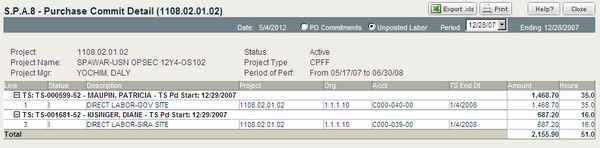
Select options in the Purchase Commit Detail header:
PO Commitments — Click this option to display the purchase order commitments.
Unposted Labor — Click this option to see a listing of unposted time sheets.
Period Ending — Select a date from the drop-down list.
On the Project Status Report, click any Labor Cost description that is underlined to audit details of expended resources.
The Labor Analysis screen displays.
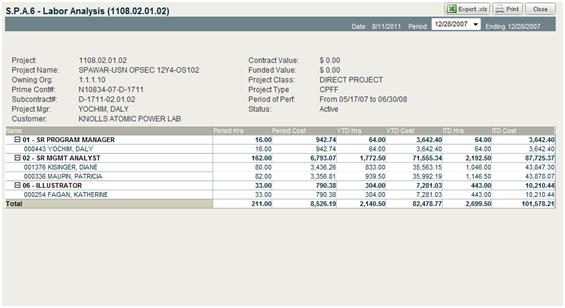
On the Project Status Report screen, click any Non-Labor Cost description that is underlined to audit details of expended resources.
The Project Non-Labor Detail screen displays.
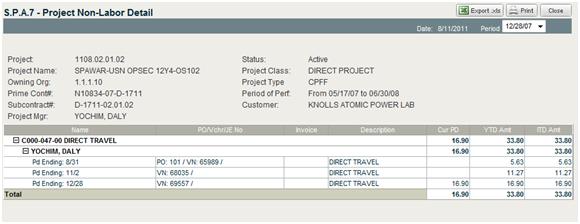
Click the + icon in the Labor Hours section to display the details of hours consumed on a project by a labor resource: Employees and Vendors.