|
|
If the selection you want to clear is the only selection in the list, click it to remove the selection. If the list contains multiple selections and you want to retain the others, press the CTRL key while you click the selection you want to clear. In this example, the second of the three originally selected projects has been cleared. |
|
|
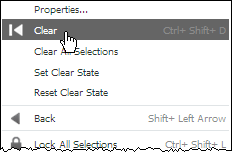
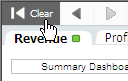
To clear all filter selections and return the analytics tab to its default filtered state, do either of the following:
Note that this option only applies to filters. It does not change cycle icon ( |
|
|
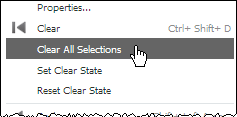
To clear all filter selections, including those that are set by default for the analytics, right-click anywhere on the analytics tab except on a filter list, and click Clear All Selections on the shortcut menu. Note that this option only applies to filters. It does not change cycle icon ( |
|
|
To return to a previous filtered view of the data, click If you use Note that these options move you between views of data by restoring previous filter selections. They do not affect any other selections (selections made using You cannot use the Back and Forward options in your internet browser to move to previous views of the analytics data. |
|
|
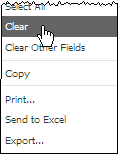
To clear the selections for one filter list, right-click anywhere on that list, and click Clear on the shortcut menu. You can also clear fiscal year, quarter, or period selections using this method. Note that this option only applies to filters. It does not change cycle icon ( |
|
|
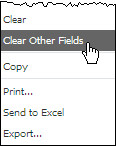
To clear the selections for all filter lists except one, right-click anywhere on the list for which you want to preserve the selections, and click Clear Other Fields on the shortcut menu. This clears selections in the analysis period and in all filter option lists except the filter list from which you selected the action. Note that this option only applies to filters. It does not change cycle icon ( |