Contents

Deltek WorkBook 13.8 Release Notes

Version DB: 13.8.24 / HTML: 13.8.24.0

Release Date: June 26, 2025

Welcome to the WorkBook 13.8 Release Notes. This document details the new features, enhancements, and resolved issues in this release.


WorkBook Documentation

Key Features

WorkBook 13.8 includes the following new and updated documentation:
  • Release Notes in updated user-centric format for ease of use. Contains a summary of new and updated features and enhancements (and links to supporting documentation, where applicable), resolved software issues, and known issues.
  • Installation Guide with updated information about connection string values.


Additional Documentation

You can perform a Deltek Support Center search for additional documents at the following link: https://deltek.custhelp.com/app/answers/detail/a_id/79936.

Feedback

If you have comments or questions about this document, you can submit them to DeltekDocumentationFeedback@deltek.com.

Technical Considerations

Installation

See the Deltek WorkBook 13.8 Installation Guide for requirements and instructions for installing the WorkBook software.

Supported Products

Compatibility Matrix

Information about platform requirements is maintained in the Deltek Product Support Compatibility Matrix, located on the Deltek Support Center. In the Matrix, search on "WorkBook" to navigate quickly to the information that you need.


Database Changes

Columns to be Removed

As part of planned database optimization and cleanup, the following columns are scheduled for removal in future releases:
  • Table Ress Column DisableTwoFactorAuthenticationOnPrivateNetwork
  • Table Ress Column SysSetting

Table Added to Support Historical Booking Information

The following table has been added to contain historical bookings information: CapUsedHistory.


Tables Added to Support Enhanced Expense Justification Functionality

The following new table stores the metadata for the expense justification template.
  • Table ExpenseEntryJustificationTemplate
  • Columns Id, Name, Active, Instructions
The following new table stores the details of the expense justification template fields.
  • Table ExpenseEntryJustificationTemplateDetail
  • Columns TemplateId, FieldId, LabelText, IsMandatory, Active
The following new table stores the justification of the expense entries as added by users. Note: The justification is stored as a JSON object.
  • Table ExpenseEntryJustification
  • Columns ExpenseEntryId, Justification

Columns Added to Display Failed Login Information

The following columns have been added so that information about failed logins can be displayed in the Session Log Overview:
  • Table LoginFailed Column AuthProvider
  • Table LoginFailed Column Reason

Columns to be Removed in Release 14.0

The following columns will be removed in Release 14.0. These changes support the implementation of enhancements to expense justification functionality.
  • Table ExpenseEntry Column AdditionalInformation
  • Table Act Column AllowExpenseAdditionalInformation
  • Table CompAct Column AllowExpenseAdditionalInformation

API Updates

The following API calls are deprecated from the main API and transferred to a new report endpoint.


APIs Migrating from Main API

Migrating to Report API

/api/json/reply/DataboardDataRequest

/report/api/json/reply/DataboardDataRequest

/api/Databoard/{DataboardId}/Data

/report/api/Databoard/{DataboardId}/Data

/api/json/reply/DataboardExportRequest

/report/api/json/reply/DataboardExportRequest

/api/Databoard/{DataboardId}/Export

/report/api/Databoard/{DataboardId}Export

/api/json/reply/DataExportPrintRequest

/report/api/json//reply/DataExportPrintRequest

/api/Dataexport/{Id}/Export

/report/api/Dataexport/{Id}/Export

Tip: For information about the WorkBook API, you can access the Deltek WorkBook API Guide at the following link: https://workbookapi.deltek.com/?version=latest.


Security Enhancements

This section includes a summary of the security enhancements in this release.

Authentication Security Enhancements

WorkBook No Longer Prompts for Two-Factor Authentication (2FA) when Using SAML SSO
Deltek Tracking: 2314521
When users log in to WorkBook via SAML (Security Assertion Markup Language) SSO (Single Sign-On), they are no longer prompted for their 2FA tokens, nor are they prompted to set up 2FA.

The use of 2FA is only applicable when users log in to WorkBook with user names and passwords. In that scenario, if a user is an employee and has not enabled 2FA, but the WorkBook system is configured to require the use of 2FA, the user is prompted to set up 2FA

Login Failure Information Added to Session Log Overview
Deltek Tracking: 2358335
If you are a System Administrator or an Advanced User who has been granted access, you can now see the reason for a failed login and the provider that was used for the login attempt on the Session Log Overview page at Settings > Advanced Tools > Session Log Overview> Advanced tab. The Provider and Reason columns have been added to the Failed Login grid to display this information. 

In addition, the factory setting for the order of columns in the Failed Login grid has been changed to show the most relevant columns first--Date, IP Address, Resource, User Name, and Reason. If you modified this grid by changing the column order or width, or if you sorted on a column, you can reset the grid to factory settings.

Cross-Site Scripting Request Forgery (CSRF/XSRF)
Deltek Tracking: 2382368
Beginning with Release 13.8, CSRF prevention is enabled by default:
  • Integrations using API keys are not affected by CSRF prevention and do not require CSRF tokens.
  • Integrations that use handshake must address CSRF prevention.
For instructions on handling CSRF tokens, see Deltek WorkBook API Databoard Setup and Best Practices. Important Note: Using API keys is the recommended authentication method for integrations.

CSRF protection can still be turned off via appsettings. However, turning CSRF protection off renders WorkBook vulnerable to cross-site request forgeries. For general information about CSRF see https://www.cloudflare.com/learning/security/threats/cross-site-request-forgery/  Cloud customers can contact Deltek Cloud Services to request to override the default value. Self-hosted customers can override the default value in the appsettings.overrides.json file.


New Features and Enhancements

This section provides a summary of all new general features included in this release.

Authentication

Basic Authentication is Disabled

Deltek Tracking: 2311004

As of Release 13.8, Basic Authentication is disabled. It is no longer possible to authenticate against the WorkBook API using Basic Authentication.

Finance & Administration

Creditors - Batch Remittance Functionality

Deltek Tracking: 2244986

The setting Send Remittance Advice has been added to the creditor record to control whether or not email drafts are created for a creditor. You must enable this setting for email drafts to be generated.

A button called Email Remittance Report EmailRemittanceReportBtn.png  has been added to the grid toolbar at Finance & Administration > Creditors > Payment Proposals. When you click this button, WorkBook generates email drafts for each creditor that is included in the payment proposal if all of the following are true:

  • The creditor has a valid email address. WorkBook gets this address from the creditor’s settings.
  • The Send Remittance Advice setting is enabled in the creditor’s settings.
  • The payment proposal is in Status-40. It cannot be in Status-10 or Status-20.
The Remittance Advice Report (Report 531) that WorkBook generates matches the payment lines of the creditor payment proposal and is attached to a draft email that is addressed to the respective creditor.

Note that WorkBook creates an email draft for all of the creditors that are included in the selected payment proposal, and who have Send Remittance Advice set to Yes, and who have an email address set for the creditor record.  No email draft is created for those creditors for whom Send Remittance Advice is set to No 

Costing Codes on Purchase Orders, Creditor Invoices, and Grid Views

Deltek Tracking: 2138058, 2288312, 1856242

This release extends the costing code functionality in several ways.

Costing Codes and Purchase Orders (POs)

You can now associate costing codes with POs directly via Job > Purchase Order Header. You no longer need to create tasks solely for the purpose of associating a PO with a costing code.

Costing codes are validated when a PO changes status--that is, when it is submitted, approved, or another status change occurs, such as reverting from approved to submitted. You cannot submit or approve a PO that has an invalid costing code. Invalid costing codes are indicated by red shading, red font, and parentheses surrounding them.

Company Variable 73 (Enable Costing Codes on Jobs, Tasks, and Purchase Orders) controls how costing codes are used. Possible values are as follows:
  • 0 -- Do Not Use
Your WorkBook system does not use costing codes. Costing code columns are hidden on jobs, tasks, and POs.

  • 1 -- Optional on Jobs, Tasks, and Purchase Orders
Costing codes are optional. Costing code columns are visible, but populating them is not required.

  • 2 -- Required on Jobs, Optional on Tasks and Purchase Orders
Jobs must have costing codes for everything job-related to work correctly, such as time entry on that job. However, costing codes are not required on tasks or POs.

  • 3 -- Required on Jobs, Tasks, and Purchase Orders
Costing codes are required on jobs, tasks, and POs.

The default value is 0 -- Do Not Use.

Note: If you import data from GaleForceMedia, you should not set Company Variable 73 to any value that requires a costing code (value 2 or 3).  New records that are imported from GaleForceMedia have no appropriate costing codes, as a result of which approval and posting of those records can potentially be blocked later in the process.

Only authorized users can access and change the costing code configurations under Settings > Costing Codes > Costing Code Setup.

Changes to costing codes on individual POs, that is, changes to the selected costing code for that PO, can be tracked in the Purchase Order Change Log for that specific PO.

If a costing code that was used on a PO that has been submitted and/or approved later becomes invalid, that historical information is not changed. The invalid costing code remains on that PO.

Costing codes can be used on a PO if:
  • They can be selected on tasks on the same associated job.
  • They are allowed for use on vendor cost and/or personal expenses.
  • They are associated with the task that is selected (if any) on the PO.
Costing Codes on Creditor Invoices

This feature also enables Finance Users to populate costing codes from POs into creditor invoice lines, ensuring that financial data is accurate. Costing codes are populated automatically from POs, or when WorkBook determines them based on job and task information, as follows:
  • The costing code of a PO is populated into creditor invoice lines when a PO reference is applied when a creditor invoice is created, so that the costing code on the creditor invoice lines matches the costing code that is applied on the original PO. This costing code is read from the PO Header and added to the line level of the creditor invoice.
  • The costing code of a PO is populated into creditor invoice lines when applying a PO reference into a creditor invoice line, so that the costing codes on the creditor invoice lines match the costing code that is applied on the original PO. The costing code is read from the PO Header and added into the lines of the creditor invoice. If you change a manual line to a PO line, WorkBook looks up the costing code, overwrites any manual value, and makes it read-only.
  • The costing code is populated into a creditor invoice line based on the job or task on that line, so that the costing code on the creditor invoice line is valid for use with the applied job and task on that line. WorkBook determines the costing code via a lookup based on the job or task on the line.
A creditor invoice with a costing code is validated at every point of approval--every time that it is moved from Status-10 upward. If a creditor invoice has an invalid costing code, that creditor invoice cannot increase its status and be approved until the invalid costing code is corrected.

Costing Codes in Grid Views

This feature also extends the visibility of costing codes by adding a costing code column to grids and subgrids, so that you can easily see the codes that are used and ensure that they are the appropriate codes. The Costing Code column displays the costing code and its description. This column now appears in the following grids:
  • Finance & Administration > Creditors > Purchase Orders Grid
The costing code appears as defined on the PO Header. (A PO that does not have an assigned task can still have a costing code assigned to it.)
  • Finance & Administration > Creditors > Purchase Orders > Cost Detail Subgrid
The costing code appears as defined on the PO Header. (A PO that does not have an assigned task can still have a costing code assigned to it.) Because only a single task is set on the PO Header, the same costing code appears on each line of the cost detail breakdown. If Activity Detail Specification is not enabled on the PO, the cost detail subgrid is not populated, in which case, no costing code is displayed or required.
  • Finance & Administration > Creditors > Creditor Invoices > Voucher Line Details
The costing code appears as defined on the PO Header.  (A PO that does not have an assigned task can still have a costing code assigned to it.)
When Release 13.8 is first deployed, the Costing Code column is displayed by default. You can use Modify Grid to hide it; however, if later your organization decides to make the use of costing codes required (using Company Variable 73), setting the value of Company Variable 73 does not automatically un-hide the Costing Code column in grids. You must use Modify Grid to make sure that it is displayed.

Scheduling

Task Matrix Added to Schedule View

Deltek Tracking: 2081845

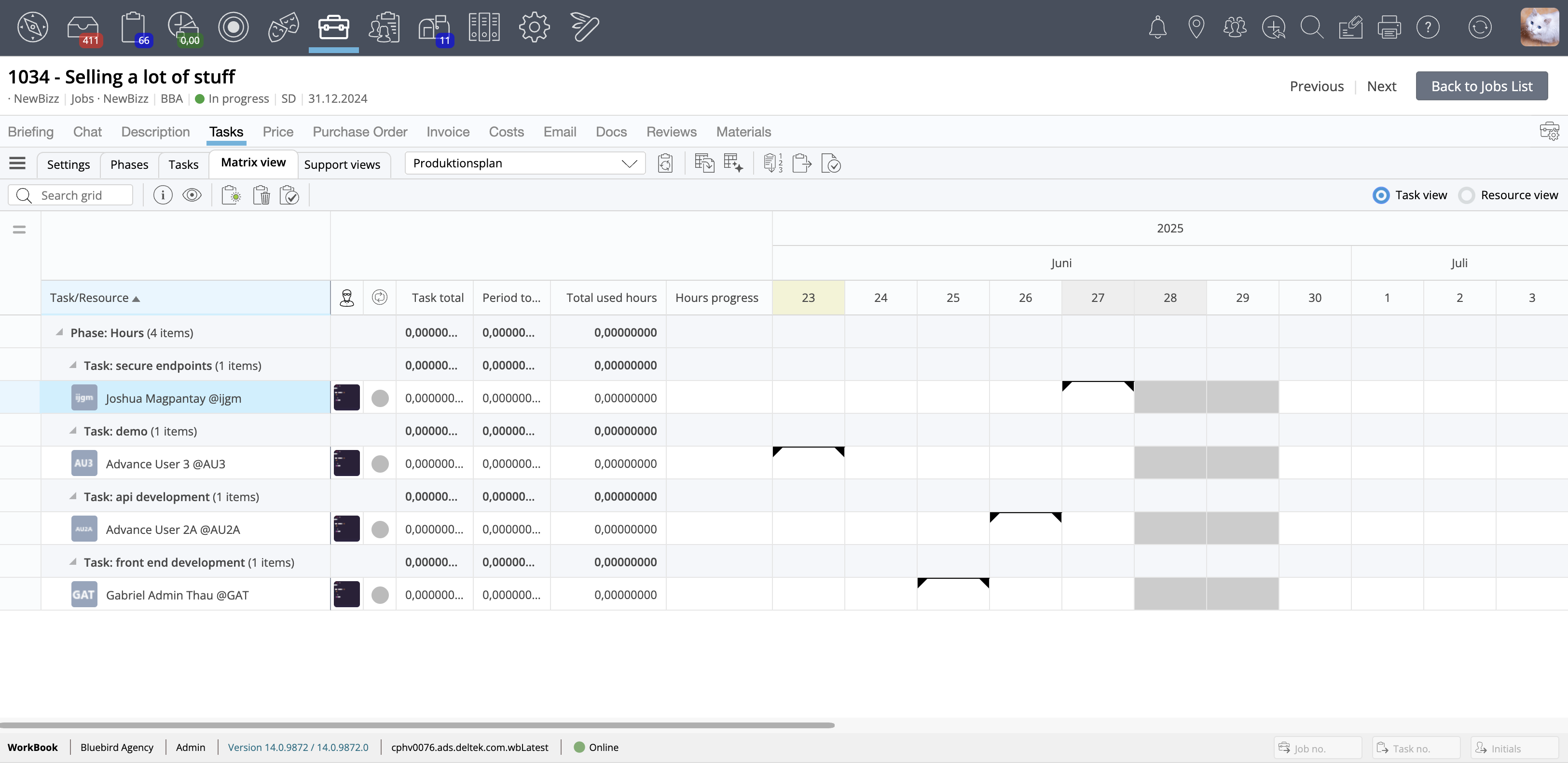
A new tab, Matrix view, is added to the Jobs module Schedule view to provide a task-matrix-style layout of the schedule. This tab displays a comprehensive view of bookings and tasks within the context of the schedule, on a single page. Thus, you no longer need to change views to get the information that you need. Task and booking information has been removed from under the Support views tab. The following figure shows an example.


TaskMatrixTab.png

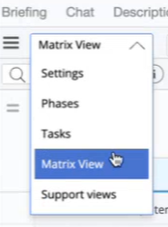
In a smaller screen size or browser window, you can easily switch between tabs by using the drop-down list, as the following figure shows.

ViewsDropDown.png

The new Matrix view tab retains the same access rights for Basic and Advanced Users and System Administrators as they exist for the Tasks tab. Basic Users cannot generate new tasks or bookings here, but they can use filtering and navigation.

Retention of Historic Booking Information

Deltek Tracking: 1848880

When this feature is enabled, WorkBook retains all bookings when resources mark themselves as done with a task. This provides a comprehensive overview of hours booked on a resource after tasks are completed. This supports schedule analysis, which helps you to improve scheduling and resource efficiency based on information from past bookings.

The retained booking information is visual only; that is, it does not affect the actual capacity of resources. Booking information is retained at the day level and can be identified against the resource, task, and job.

You enable this functionality via a new System Variable, 1195: Retain Bookings after Resource Completion. Valid values are enabled (true) or disabled (false). The default value is disabled.

If a resource reopens a task, its booking history is removed. This ensures that no duplicate data is saved when a task is reopened and subsequently is set to completed again. This occurs even if System Variable 1195 is disabled.

This functionality is also affected by System Variable 746: Set Re-Calculate Hour Allocation Method after Time Entry. When this System Variable is set to Recalculate Immediately (its default value), WorkBook immediately removes the hours that are booked when a user adds time entry against a task. The retention of historic booking information generally only applies when a user marks a task or task resource as done, which saves the existing bookings into the history table and removes them from the bookings table. However, System Variable 746 affects that behavior by removing hours from the bookings table while the task is still open. With this feature, WorkBook moves hours from the bookings table to the history table when a user enters time on a task, and System Variable 746 removes it from the bookings table.

Previously, if you entered time against a task on which you were booked, and WorkBook removed the equivalent bookings, and then you changed the time that you entered to a lower number of hours, WorkBook put the difference into the Hours Not Booked field on the task resource. Now, if historical bookings exist, Workbook tries to restore those booking hours on the days on which they previously existed, instead of putting them in the Hours Not Booked field.

Time Allocation Summary Databoard (1125) Added

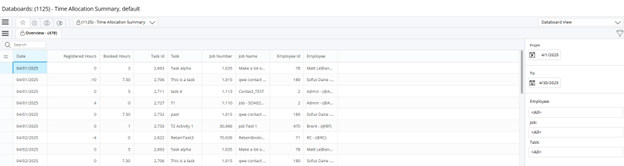
This new databoard displays registered hours, booked hours, task, job, and employee after resources have marked tasks complete. This enables you to see how time entries may have varied against bookings.
Navigate to Settings > Advanced Tools> Databoards and select 1125 – Time Allocation Summary from the drop-down list of databoards. The following shows an example.

RetainHistBookInfo.png

Use the filter pane at the right side of the page to set the parameters to select the information that you want to see.

Order of Tasks Retained when Copying Price Quote to Schedule

Deltek Tracking: 2167204

When you create or copy a schedule based on a Price Quote (PQ), WorkBook now keeps the tasks that it creates in the same order as the order of the PQ lines. You can, however, change both task and PQ line numbers after the tasks are created.

As was the case before Release 13.8, WorkBook does not require that PQ line numbers and task numbers be unique. WorkBook considers only line numbers; thus, you do not need to include the start date in the numbering logic as a differentiator.

When you copy a schedule, the tasks that WorkBook creates follow the PQ line numbering as specified per the Copy Price Quote to Schedule dialog box.

To facilitate this, a No. column has been added to the Copy Price Quote to Schedule dialog box to specify how to reflect PQ line numbering:
  • The value of the No. column defaults to the line number given on the PQ.
  • You can edit the contents of the No. column. Any overwritten value is respected in the tasks that WorkBook creates.
  • The value of the No. column must be above 0.
When you click OK in the Copy Price Quote to Schedule dialog box with a line number on each line, WorkBook inserts the lines into the schedule, in enumerated order.

Time & Expense

Expense Entry - Expanded Expense Justifications Details Functionality

Deltek Tracking: 2081048

Some organizations in some regions may be required to report certain information related to employee expense claims. Previous versions of WorkBook provided a single text field for capturing expense justifications. This feature extends this functionality, enabling you to collect additional information required for specific expenditures, enhancing the efficiency and accuracy of expense reporting. These enhancements include:
  • A new Expense Justification page under Settings > Price Lists & Activities where System Administrators can create and manage custom templates for capturing this additional expense justification information.
  • A default template for expense justification entry, if you choose not to use custom templates.
  • A new method for indicating that an expense justification is required for an activity. Now you associate an expense justification template with an activity by selecting that expense entry template from the drop-down list in the Expense Justification Template column at Settings > Price Lists & Activities > Activities on either the Global Activity Settings tab or the Company Activity Settings tab. This makes the entry of expense justification information required for that activity. Previously, you selected a checkbox to indicate that an expense justification was required, and only one text field was provided for the justification information.
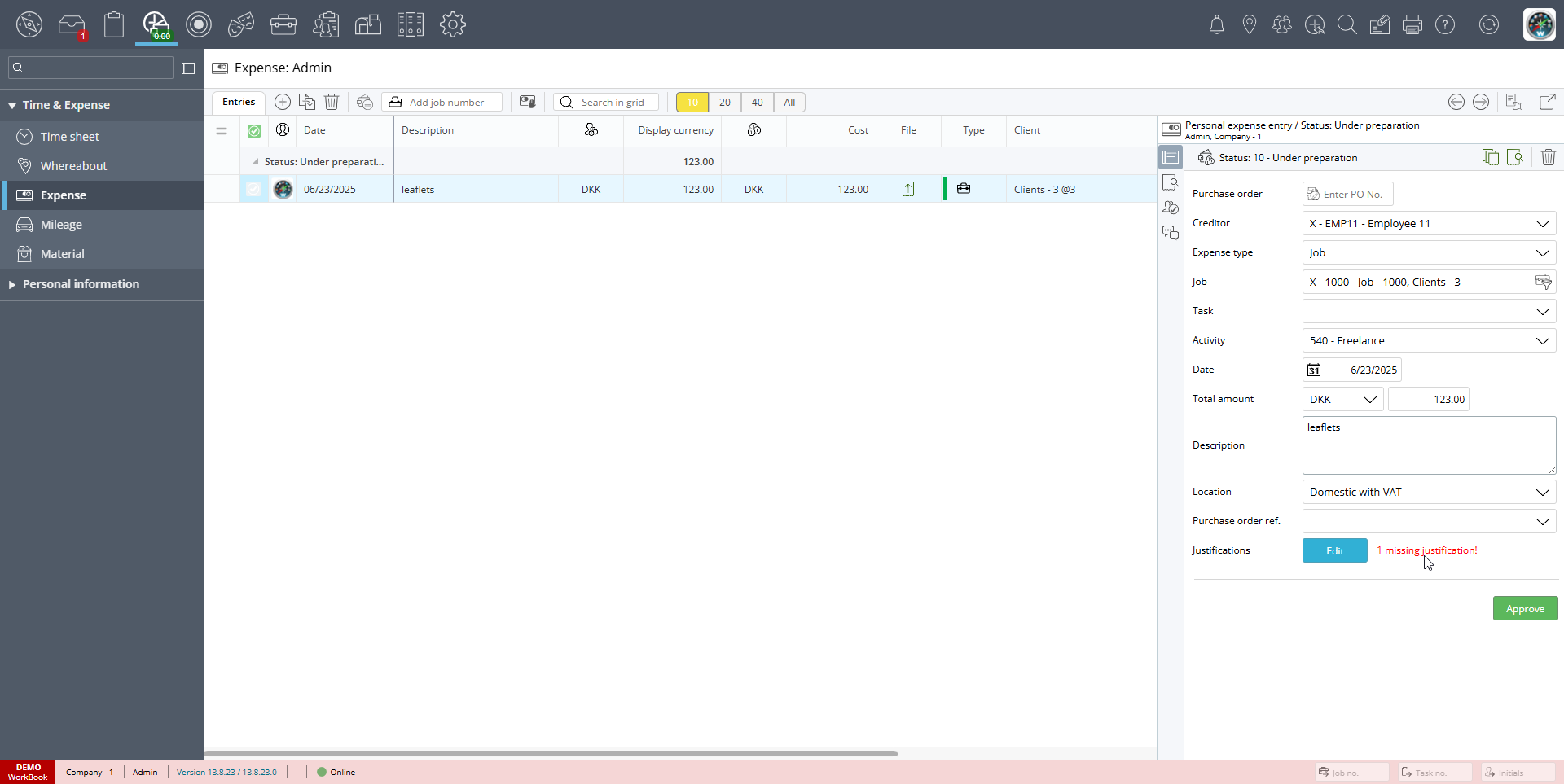
  • Warnings that indicate that expense justification information is missing. When an expense is missing required justification information, WorkBook displays a warning giving the number of missing justifications next to the Justifications field in the Personal Expense Entry pane. Click Edit to provide missing justification information. Mandatory fields are marked with asterisks.
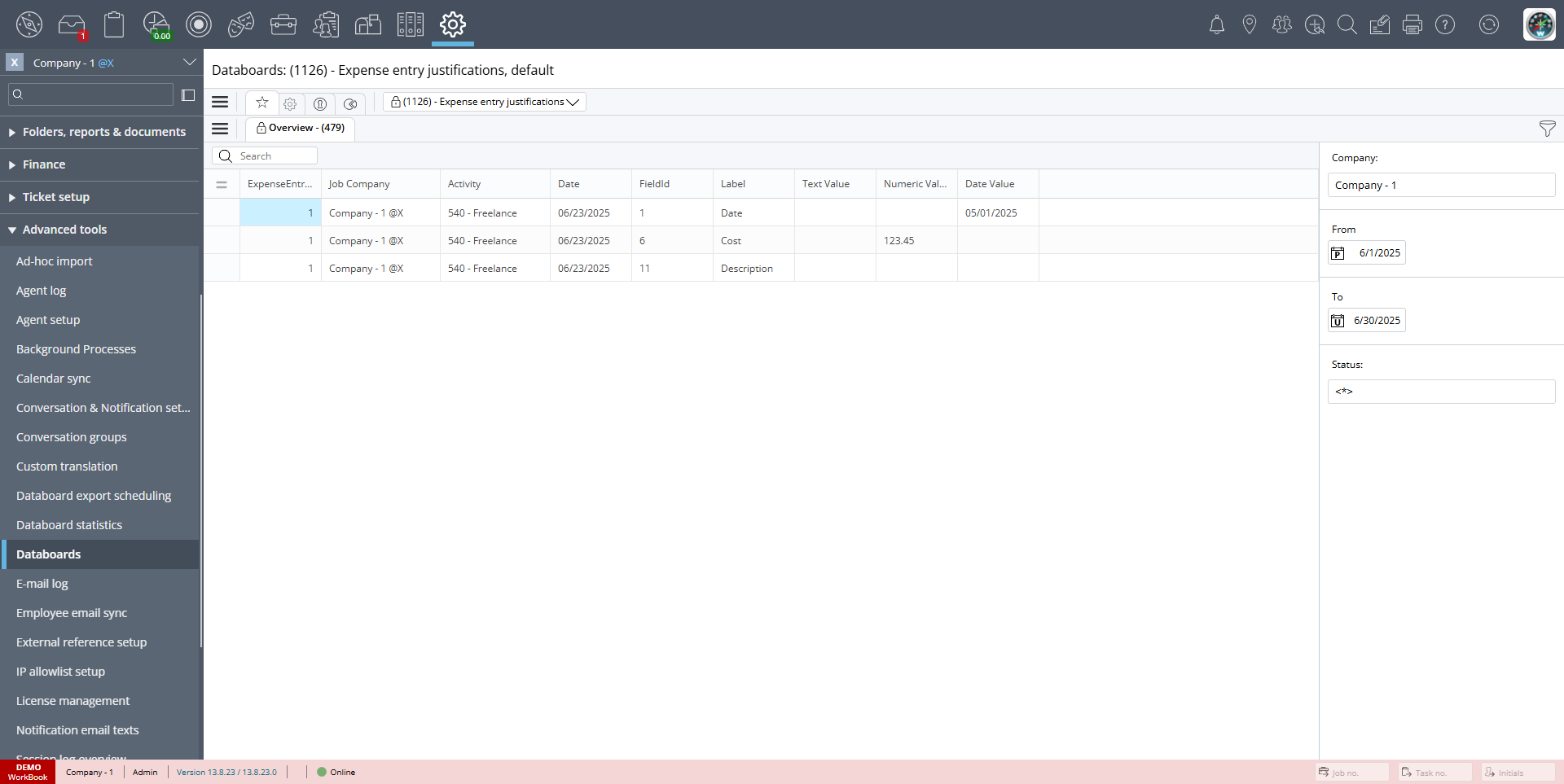
  • The ability to export expense justification information via the Expense Entry Justifications (1126) databoard. Only entries where justification data has been entered or edited are included. For expenses that are in Approved status, justification data is displayed based on the snapshot at the time of approval, and not the actual template, which might have changed since the approval.

Note: Expense justification information that existed before WorkBook 13.8 has been migrated automatically to the new format for you.


Creating Custom Templates

For custom templates that you create:
  • Each template can include up to 15 fields:
    • 5 date fields
    • 5 numeric fields
    • 5 text fields
  • Each field can be enabled or disabled. If a field is enabled, it is displayed on the Personal Expense Entry pane; otherwise, it is not.
  • Each field can be mandatory or optional.
  • You can provide instructions or other explanatory text that is displayed at the top of the Expense Justification Dialog page.

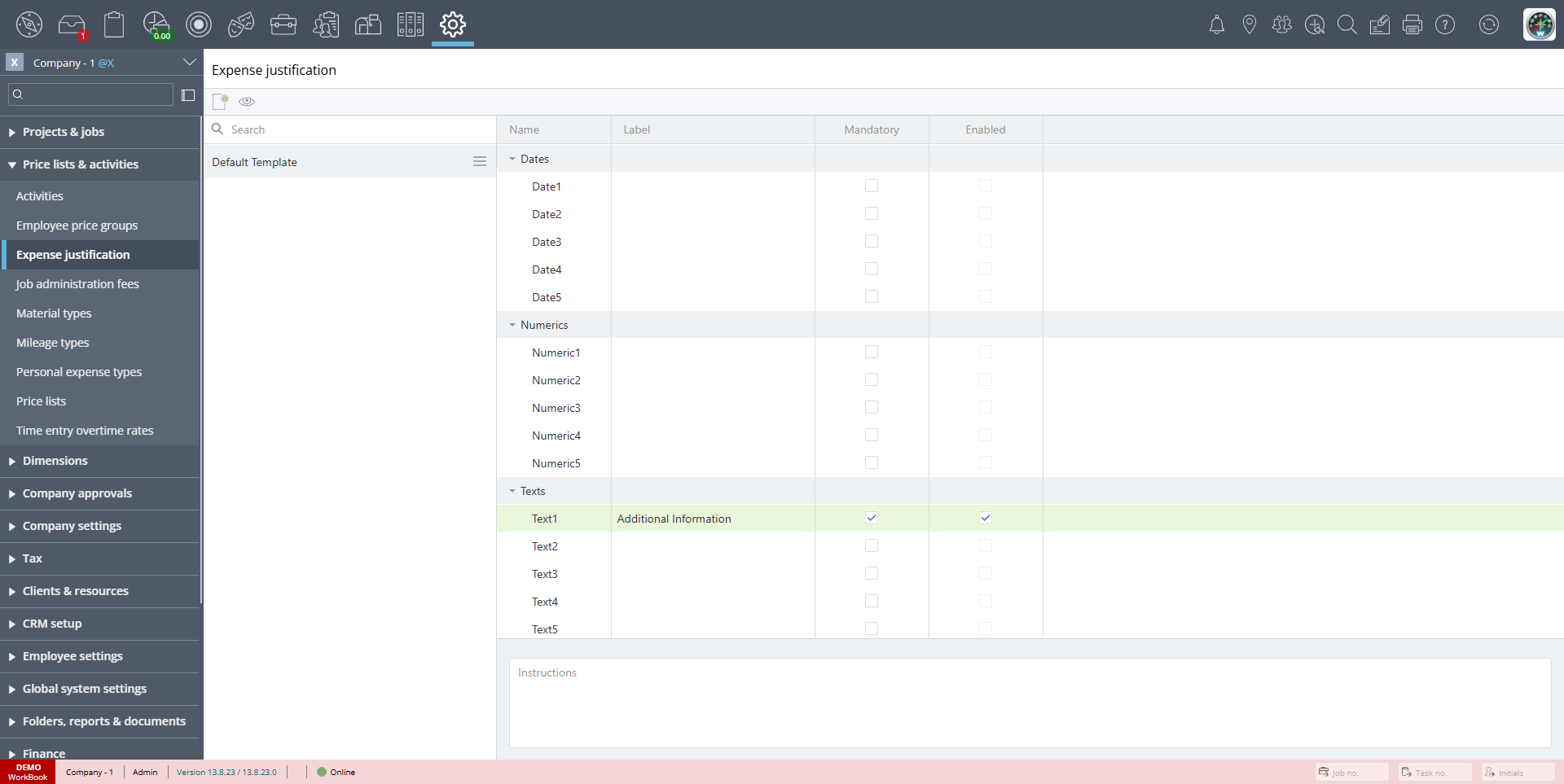
The following is an example of the new Expense Justification page that System Administrators use to set up an expense justification template. It shows the basic, default template.

01DefaultTemplate.png

The default template provides one predefined text field, with a predefined label, Additional Information.
  • You can click CreateCustTemplate.png to create a custom template.
  • You can click Preview.png to preview the template before you make it active. The preview is read-only.
  • You can select an existing template and then click the hamburger menu next to its name to access a pop-up menu that provides options to rename, duplicate, delete, and disable that template.
Using Custom Templates

Note the following when using custom templates:
  • If you set up a justification template in Global Activity settings (Settings > Price Lists & Activities > Activities > Global Activity Settings tab), WorkBook populates the template to Company activities that do not already have a template associated with them.
  • You can change an activity to require expense justification information entry into a new/different template—or no template—at any time.
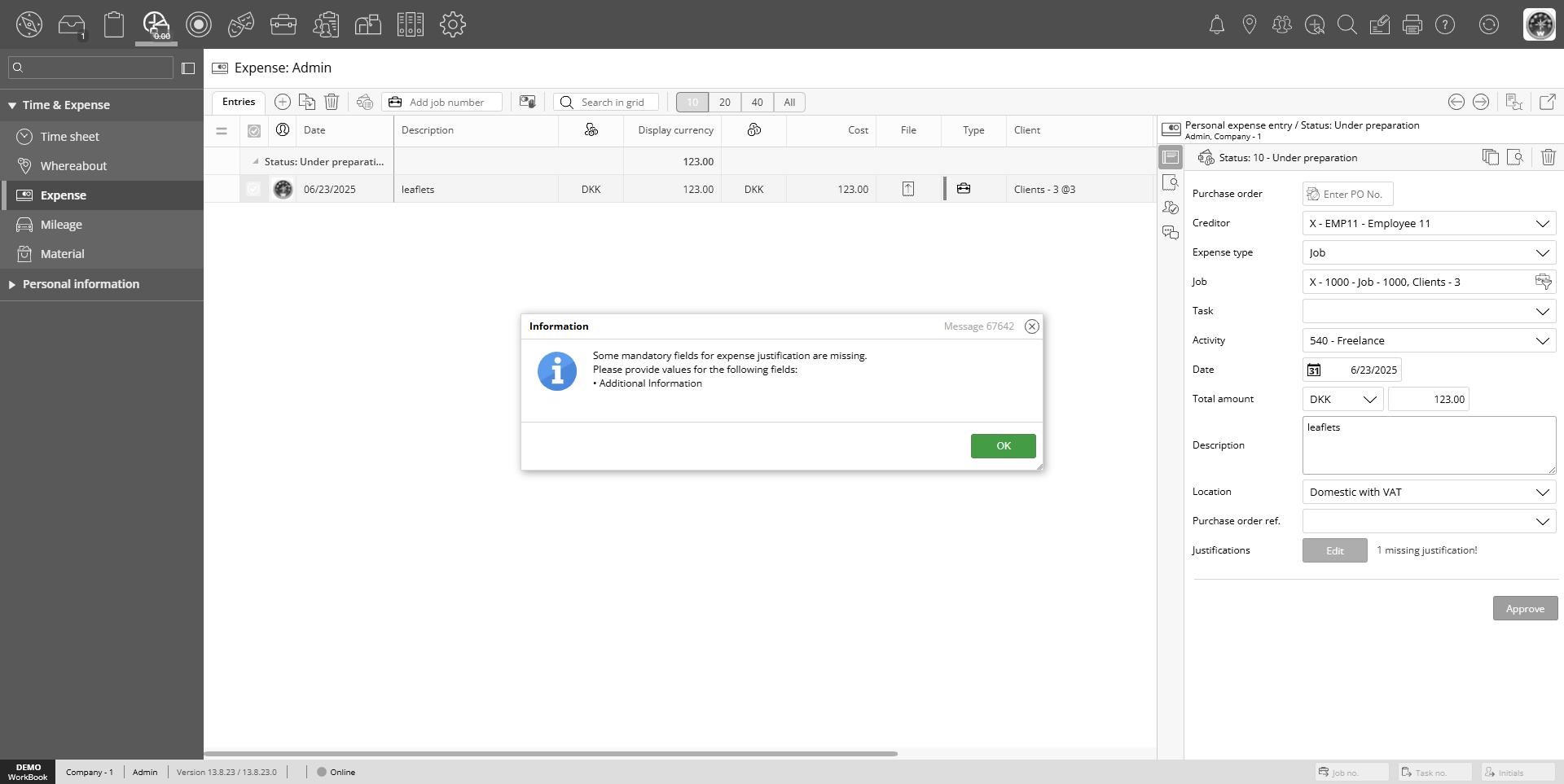
  • Expense entries can only be sent for approval/approved if all required information is provided, as the following figure shows.
02UsingCustomTemplates.png

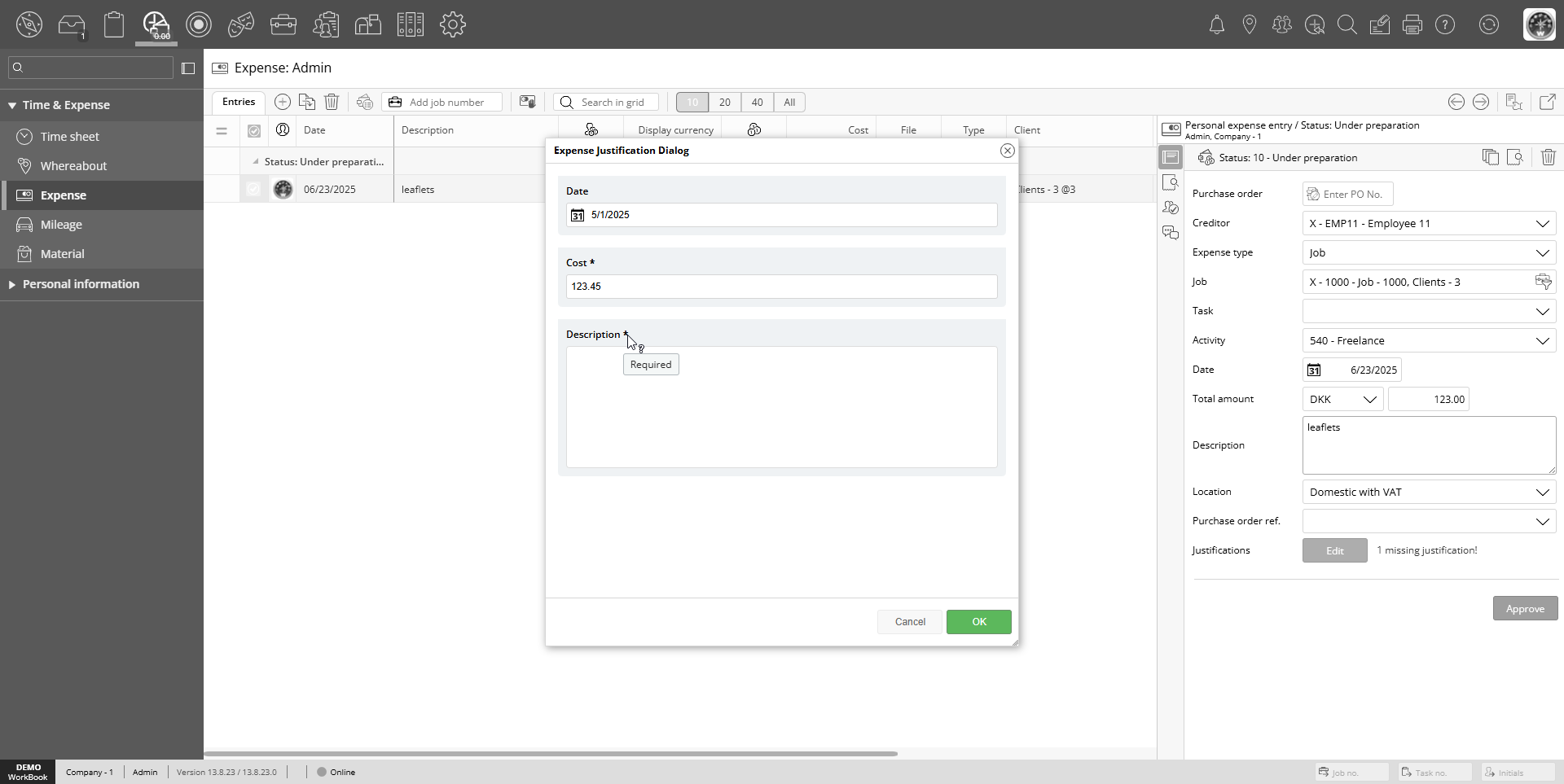
The following is an example of the Expense Justification Dialog page, where you enter justification information.

03ExpenseJustificationDialogPage.png


The following is an example of an expense justification entry for a particular employee, showing a warning that the expense justification is missing.

04MissingExpenseJustificationWarning.png

The following is an example of the Expense Entry Justifications (1126) databoard.

05ExpenseEntryJustifications1126Databoard.png


Software Issues Resolved

This section includes all fixes in this release.

Agents

Deltek Tracking: 2388057
Agent 164 (Add Employees with Client Access to Job Teams) Fails with Large Amounts of Data
Description: When you tried to run Agent 164, it sometimes failed because of a large amount of data.

Finance & Administration

Deltek Tracking: 2321744
Creditors - Creditor List - Error when You Open a Voucher Card
Description: When you opened a voucher card from the Transactions tab, you could experience an error.

Deltek Tracking: 2371744
Purchase Orders (POs) - PO Title Display Issue
Description: When you opened a PO drop-down list that had a title that is longer than 200 characters, the drop-down shifted off-screen, hiding other PO titles. 

Deltek Tracking: 2375165
Pagero Import - Missing Optional Fields Cause Error
Description: When you uploaded a third-party file to Pagero and imported it into WorkBook, if the file was missing some optional fields, WorkBook produced an error.

Deltek Tracking: 2386566
Creditors - Cannot See Attachments on Inter-Company Vouchers
Description: When you made inter-company postings, attachments on the original voucher were not copied to the resulting vouchers on the other Companies.

Framework

Deltek Tracking: 2349887
Error Report Prevents Restart
Description: When System Variable 1139 (Error Reporting) was set to any value other than its default value (which is 2 - Automatic), and WorkBook displayed an error report, and you clicked Restart in the dialog box, WorkBook did not restart.


Deltek Tracking: 2341687
LDAP Authentication - No Default to Username
Description: When LDAP authentication was enabled for users, but their domain login names were not set, their logins did not default to their usernames.

Jobs

Deltek Tracking: 2323908
Jobs List - Ampersand is Displayed Incorrectly in Department Names
Description: In Job List view grids, when a job's department name contained an ampersand (&) it was displayed as & instead of &.

Deltek Tracking: 1962108
Cannot Scroll through Task Briefing Templates
Description: When you had a large enough number of templates for task briefings that the list of templates exceeded the size of the page, you could not access templates that were farther down the list because there was no scroll bar to enable you to see more of the list.

Deltek Tracking: 2368834
Jobs List - Invoices - Invoice Line Changes were Lost when Editing New Lines
Description: When you changed activity on an invoice line and immediately started editing the activity description, some of the text was lost.

Deltek Tracking: 2361665
Timeouts and Long Loading Times when Updating Job Key Figures
Description: Timeouts and long loading times sometimes occurred when updating job key figures because of database connection pool exhaustion. The cause was frequent job data updates when System Variable 1188 (The Frequency of Recalculation of Jobs Key Figures in Minutes) was enabled, which led to excessive connection use during recalculations.

Resources

Deltek Tracking: 2380432
Create Employee - No User Types to Select in Drop-Down List
Description: When you tried to create an employee, if System Variable 1120 (Control which Users are Able to Create a New Employee or Move an Existing Employee to a New Company) was set to 2 (System Administrators and Advanced Users with Access to Settings), and your user account did not have access to Settings in your Company, there were no user type values to select in the User Type drop-down list in the Add New Employee dialog box.

Scheduling

Deltek Tracking: 2317674
Booking Time not Updated when Moved in Timeline Calendar
Description: When you changed bookings from the timeline calendar, they were not updated correctly. They were displayed incorrectly on the task.

Deltek Tracking: 2306642
Calendar Synch - WorkBook Creates Duplicate Bookings
Description: When you synchronized in both directions with an Azure (Office 365) calendar, Azure sometimes caused an error whereby appointments that were created in WorkBook and synchronized with the Office 365 calendar were subsequently reimported back to WorkBook, creating duplicates. This occurred rarely.

Deltek Tracking: 2375049
Incorrect Capacity Calculations on Some GSR Resources
Description: When two GSR setups had overlapping dates, invalid amounts of capacity were visible

Deltek Tracking: 2344653
Task Matrix - Filter is not fully Reapplied on Soft Refresh
Description: When you applied a dimension that matched an existing task matrix filter to a resource, doing a soft refresh in the task matrix did not show the resource.

Settings

Deltek Tracking: 2105036
Notification Email Text - Edit History Unavailable
Description: When you saved changes in a rich text editor, the edit history became unavailable, and you could not revert or restore history.

Deltek Tracking: 2386565
Price Lists Setup - Client and Company Tabs - Read-Only Access
Description: When you switched between the Client and Company tabs in the access settings sidebar on the Price Lists setup page (Settings > Price Lists & Activities > Price Lists), read-only access temporarily became edit access.

Storage

Deltek Tracking: 2313716
Job Folders Inaccessible after Update to Release 13.6
Description: When you upgraded to Release 13.6, and your WorkBook system was configured to use a WebDAV storage provider, job folders became inaccessible.

Tasks

Deltek Tracking: 2166664
Follow-Up - Debtors with Due Payments Page - Infinite Loop of Refreshes
Description: When you had debtors from multiple Companies on the Debtors with Due Payments follow-up page, and you selected multiple debtors, you became stuck in an infinite loop of refreshes.

Time & Expense

Deltek Tracking: 1975199
Expense Entry - Cannot Attach Files to Vouchers with Status Higher than Status-10
Description: When you tried to attach a file to a Creditor Invoice that was in a status higher than Status-10, WorkBook displayed an error.

Deltek Tracking: 2386559
Expense - Expense Type Job - Purchase Orders (POs) Unrelated to Creditor are Included in the Drop-Down List
Description: On an expense entry of Expense Type Job, when you selected a job, and you clicked on the Purchase Order Ref., POs that are not associated with the creditor were also included in the drop-down list.

Deltek Tracking: 2386556
Time Entries Sent for Approval Incorrectly
Description: WorkBook sent time entries for approval despite Company Variable 68 (Restrict Activities on Time Entries to Price List with a Valid Date) being enabled, and despite the activity being disallowed. 


Known Issues

This section includes a summary of known issues in this release.

Storage Providers
Azure Storage Cannot Handle a Subfolder Root Path if the Folder Name Starts with a Capital Letter
Deltek Tracking: 2273062
When WorkBook System Administrators configure an Azure Storage provider with a root folder path whose name starts with a capital letter, they cannot browse the subfolder.

Time & Expense
Expense -  Expense Entry Rejected with Invalid Purchase Order (PO) Ref. Field Carries the Red Highlight of the PO Ref. Field Over to New Expense Entry
Deltek Tracking: 2412036
When a Status-10 expense entry is rejected, and that record has an invalid Purchase Order Ref., when the author of the rejected expense entry tries to create another (Status-10) expense entry, the red highlight is retained on the Purchase Order Ref. drop-down field on the new expense entry.