While Deltek has attempted to verify that the information in this document is accurate and complete, some typographical or technical errors may exist. The recipient of this document is solely responsible for all decisions relating to or use of the information provided herein.
The information contained in this publication is effective as of the publication date below and is subject to change without notice.
This publication contains proprietary information that is protected by copyright. All rights are reserved. No part of this document may be reproduced or transmitted in any form or by any means, electronic or mechanical, or translated into another language, without the prior written consent of Deltek, Inc.
Draft edition published March 2025.
© Deltek, Inc.
Deltek’s software is protected by copyright law and constitutes valuable confidential and proprietary information of Deltek, Inc. and its licensors. The Deltek software, and all related documentation, is provided for use only in accordance with the terms of the license agreement. Unauthorized reproduction or distribution of the program or any portion thereof could result in severe civil or criminal penalties.
All trademarks are the property of their respective owners.
Deltek WorkBook 13.7 Revised 2
Version DB: 13.7.31 / HTML: 13.7.31.0
Release Date: March 31, 2025
Welcome to the WorkBook 13.7 Revised 2 Release Notes, which describe the features and enhancements and issues resolved in this release.
Overview
This document provides the following information:
Notice of Updated Build Numbers
This revision provides updated build numbers as follows:
- Version DB: 13.7.31
- Version HTML: 13.7.31.0
WorkBook Documentation
Key Features
WorkBook 13.7 includes the following new and updated documentation:
- Release Notes in updated user-centric format for ease of use. Contains a summary of new and updated features and enhancements (and links to supporting documentation, where applicable), resolved software issues, and known issues.
Additional Documentation
Feedback
Technical Considerations
Cookie Consent
Cookie consent is added to WorkBook to comply with various data and privacy laws, as well as Deltek's updated cookie policy. The WorkBook Cookie Consent box appears when you first log in to WorkBook after an upgrade, and on a periodic basis thereafter. You can also change your cookie consent in-app at any time, through the menu at the top-right.
Choose from the following: - Accept All Cookies: Select to allow all cookies and experience full WorkBook functionality.
- Accept Only Required Cookies: Select to allow only required cookies. This may limit the functionality of some features.
- Open Cookie Settings: Select to expand cookie options, then click Select Preference.
- Required Cookies: This is always enabled and is needed for WorkBook to function.
- Functional Cookies: Select to allow cookies that enable particular functions such as retaining login details. If you do not select this setting, some WorkBook features may not work as intended.
- Analytical Cookies: Select to allow cookies that provide data analysis and enable functionality such as saving your place in the system when you log out. If you do not select this setting, some WorkBook features may not work as intended.
In addition, language choices include EN for English and FR for French-Canadian, to support current U.S. and Canadian privacy and data laws.
Installation
Supported Products
Compatibility Matrix
Information about platform requirements is maintained in the Deltek Product Support Compatibility Matrix, located on the Deltek Support Center. In the Matrix, search on "WorkBook" to navigate quickly to the information that you need.
Upcoming Deprecation
Basic Authentication Deprecation for Integrations
Basic Authentication for integrations will be removed starting with WorkBook 13.8. Integrations should be reconfigured to newer authentication methods before this version.
End of Support for Microsoft SQL Server 2019
Starting with WorkBook 13.8, scheduled for release in the second quarter of 2025, support for Microsoft SQL Server version 15.0 will be discontinued. Users must upgrade to a newer supported version of SQL Server prior to this release to ensure continued compatibility.
API Updates
REMINDER: The existing main API calls remain active in WorkBook 13.7. However, you must begin using the migrated API calls beginning with WorkBook 13.8. Failure to migrate these API calls before using Release 13.8 might negatively affect your integration with WorkBook.
In WorkBook 13.8 the following API calls will be deprecated from the main API and transferred to a new report endpoint.
|
APIs Migrating from Main API
|
Migrating to Report API
|
|
/api/json/reply/DataboardDataRequest
|
/report/api/json/reply/DataboardDataRequest
|
|
/api/Databoard/{DataboardId}/Data
|
/report/api/Databoard/{DataboardId}/Data
|
|
/api/json/reply/DataboardExportRequest
|
/report/api/json/reply/DataboardExportRequest
|
|
/api/Databoard/{DataboardId}/Export
|
/report/api/Databoard/{DataboardId}Export
|
|
/api/json/reply/DataExportPrintRequest
|
/report/api/json//reply/DataExportPrintRequest
|
|
/api/Dataexport/{Id}/Export
|
/report/api/Dataexport/{Id}/Export
|
Security Enhancements
This section includes a summary of the security enhancements in this release.
Authentication Enhancements - New Login Required when New Version of WorkBook is Deployed
Deltek Tracking: 2247775
Release 13.7 implements changes that streamline and simplify authentication behind the scenes. The change that directly affects your interaction with WorkBook is that when a new version of WorkBook is deployed, you must log in again.
Previously, if you had an open WorkBook session, and a new version of WorkBook was deployed, you remained logged in. This change was made to avoid a situation where users might remain in open sessions that were created in previous WorkBook versions, which would result in those sessions not having the same properties as the newly deployed version.
Features and Enhancements
This section provides a summary of all the features and enhancements included in this release.
Cookie Consent
Deltek Tracking: 2240319
Cookie consent is added to WorkBook to comply with various
data and privacy laws, as well as Deltek's updated cookie policy. The WorkBook
Cookie Consent box appears when you first log in to WorkBook after an upgrade,
and on a periodic basis thereafter. You can also change your cookie
consent in-app at any time through the menu at the top right.
Choose from the following:
- Accept all Cookies--Select to allow all
cookies and experience full WorkBook functionality.
- Accept only Required
Cookies--Select
to allow only required cookies. This may limit the functionality of some
features.
- Open Cookie Settings--Select to view additional cookie options, then click Select Preference.
- Required Cookies--This is always
enabled and is needed for WorkBook to function.
- Functional Cookies--Select to enable cookies that allow for particular functions such as retaining log-in
details. If you do not select this setting, some WorkBook features may not
work as intended.
- Analytical Cookies--Select to allow
cookies that provide data analysis and enable functionality such as
saving your place in WorkBook when you log out. If you do not select
this setting, some WorkBook features may not work as intended.
In addition, language choices include EN for English and
FR for French-Canadian, to support current U.S. and Canadian privacy and data
laws.
Employee Card Updates
Deltek Tracking: 1856252
Beginning with Release 13.7, you have an enhanced way to
copy settings from an employee at a Company level, and then further customize settings
if you need to set your own specific defaults. You can also designate additional fields as required and manage access with more granularity, such as in the case
where you have freelance workers outside of a normal Human Resources Department
process.
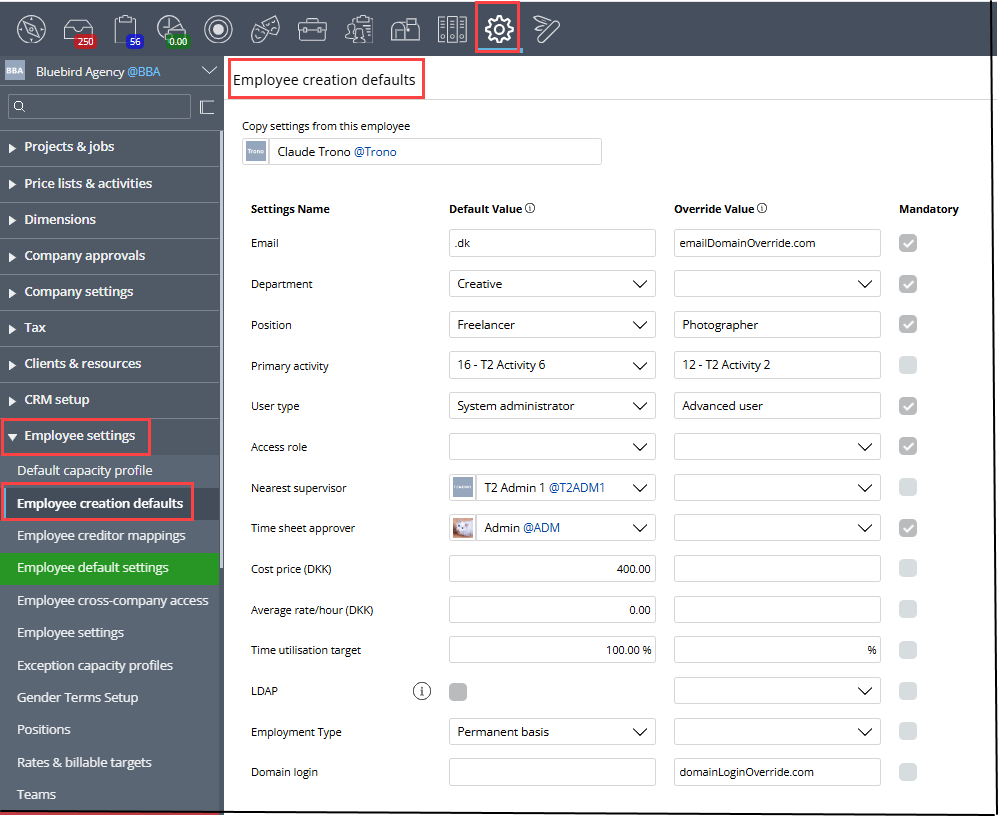
This functionality has been added via a new Employee Creation
Defaults page, shown in the following figure. The former Copy Settings from
this Employee functionality has been moved from the Company Resource Card to this new
page. You access this new page via Settings > Employee Settings >
Employee Creation Defaults. You must be a System Administrator to access
this page and assign values to or change these settings.
As with the previous copy settings from an employee
functionality, you use an existing employee’s settings as a template for
creating another employee, and then use this new page to further customize the
settings.
Settings that you created using the previous functionality have
been migrated to this new page for you. If you provided a value for a setting
using the previous functionality, that value has also been migrated to this new
page for you. These settings no longer appear under Company settings.
As you can see in the preceding figure, this new Employee
Creation Defaults page provides the following columns for each setting:
- Default Value – Displays any existing
value that has been set as the default value for the employee whose settings
you are copying. Note that the values in this column are read-only. When you
hover your cursor on the drop-down arrow, it changes to the lock icon to
indicate that you cannot enter or change its value.
- Override Value – Enables you to enter the
value that you want to use as the default value, instead of the value that is
displayed in the Default Value column. The employee creation process then uses this
value unless it is invalid, in which case it uses the value in the Default
Value column.
- Mandatory – Enables you to designate a
setting as a required setting. The fields that you designate as mandatory are
flagged by asterisks in places such as the Add New Employee page, as you
would expect. Note that you cannot deselect some fields on this new Employee
Creation Defaults page to make them non-mandatory because WorkBook requires
them.
Other notable items include:
- When you hover your cursor on the
 Information icon for
the Default Value or the Override Value column, WorkBook
displays a description of how the values in the column are used.
Information icon for
the Default Value or the Override Value column, WorkBook
displays a description of how the values in the column are used. - WorkBook validates some entries on this page.
For example, if a previously selected and previously valid department is now
inactive, it is highlighted in red on the Employee Creation Defaults page.
This same validation is used for other fields that are subject to similar
changes, such as Primary Activity and Nearest Supervisor. Only
valid options are available to you in drop-down lists in the Override Value column.
- WorkBook does not let you change any values on
the Employee Creation Defaults page if any values in the Override Value
column are invalid. You must correct the invalid value(s) first. In some cases
when a value is invalid, the
 icon is
displayed next to the drop-down field. When you hover your cursor on that
icon, a tooltip explains why the value is invalid.
icon is
displayed next to the drop-down field. When you hover your cursor on that
icon, a tooltip explains why the value is invalid. - A new LDAP checkbox enables or disables
the use of Lightweight Directory Access Protocol (LDAP). You can only select this
checkbox when System Variable 844 (Allow the Usage of Lightweight Directory
Access Protocol Authentication for Users) is enabled.
Use of LDAP is valid only for System
Administrator, Advanced, and Basic User types.
Note that the LDAP checkbox
is also affected by System Variable 1181 (Third-Party Identification Provider
for Employees). When System Variable 1181 is set to its default value (0, Manually
Enable Users to Third-Party Identification Provider), System Administrators can
enable or disable the use of LDAP manually on Basic and Advanced Users.
- A new Domain Login field enables you to
set a domain login when LDAP is enabled—that is, the LDAP checkbox is
selected. The value in this field is the default domain name of the selected
Company. Remember that this page relates to the selected Company.
- An indicator of the Company Currency is
displayed in parentheses after the Cost Price and Average Rate/Hour
fields.
Changes to the Related Add New Employee Page
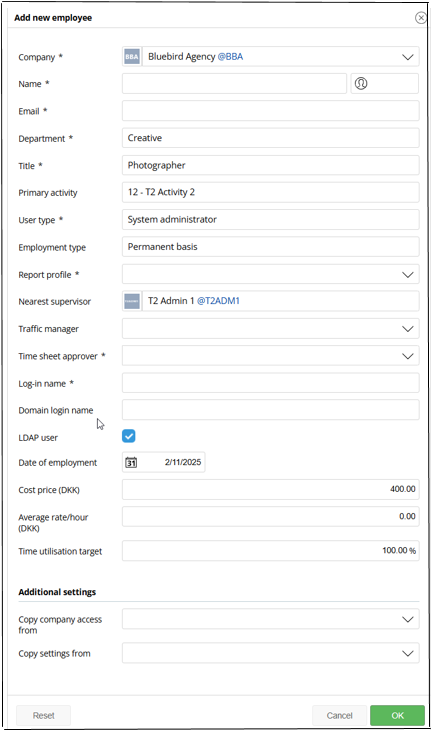
Some changes have also been made to the Add
New Employee page. The following figure shows the revised page.
The following fields have been added to this page:
- Employment Type
- LDAP User
- Domain Login
The addition of these fields to the Add New Employee page enables you to set their values when you create an employee, rather than having to go to the Employee Settings tab/sidebar later.
This page also now has a Reset button. If you decide that you do not want to continue creating an employee with the settings that you have selected, you can click the Reset button to reset the page and start over. This Reset button has also been added to the Duplicate Employee page. Note that on the Duplicate Employee page, the employee that you select to duplicate must be a Basic or Advanced User.
In addition, two fields related to copying settings have been moved into a separate section at the bottom of the page, Additional Settings, to make them more visible. Their functionality has not changed.
Task Matrix - Include Used Hours
Deltek Tracking: 1856241
Description: You can now view both the booking and the hours that have
been used on that booking in the same place, which makes it easier for you to
see what proportion of that booking has been consumed. To achieve this, two
columns are added to the Task Matrix view in the Scheduling module.
- Total Used Hours Column – Displays the Total
Used Hours entered by a resource in the Task Matrix. You no longer need to go
through Jobs > Tasks > Resources to see this information. The number of
hours that this column displays is not subject to any date filtering that is applied
in the filter sidebar.
New filtering enables you to
switch the Total Used Hours column to display either All hours or only
Approved hours. You control this by selecting or deselecting a new Show Only
Approved Used Hours check box in the filter sidebar. When you select this
check box, any hours that are in Status-40 (Approved) or Status-60 (Booked) are
included in the Total Used Hours. When this check box is not selected, theTotal Used Hours value is the sum of all hours in all possible statuses.
The default value is deselected.
- Hours
Progress Column – Displays the progress of the task as a percentage in
terms of used vs. total booked hours. This percentage is calculated as Used
Hours divided by the value in Task Total, which represents the total
booking. This percentage is displayed without decimal places (rounded to the
nearest whole number) and can exceed 100%. If this value is negative, 0% is
displayed in this column. This calculation is affected by the Show Only
Approved Used Hours filter.
The Hours Progress column
uses color formatting to convey additional information as follows:
- If the percentage is less than or equal to 100%
the cell is shown in green, in a proportion that is equal to the value of the
percentage, starting from the left side of the column and extending toward the
right side.
- If the percentage is greater than 100% the cell
is shown in red, including the case when the percentage is greater than 100,
but rounded down to 100.
The values in the Total Used Hours and Hours
Progress columns are always displayed in the standard format, even if the
display option for percentage or revenue is selected.
Columns Added to Expense-Related Pages
Deltek Tracking: 1843323
Additional columns are now available on several expense-related pages:
- Creditor – This column displays the same data as shown on the expense card. It appears after the Client column, with a button to display the Creditor resource card.
- Location – This column displays the same data as shown on the expense card. It appears after the Voucher Number column.
- Purchase Order Ref. – This column displays the same data as shown on the expense card. It appears after the Location column.
- Task – This column displays the same data as shown on the expense card. It appears after the Job column, with a button to display the task card.
These columns are hidden by default on the pages on which
they are now available. Use the Modify Grid option to display the
column(s)—right-click in the grid and scroll down the pop-up menu.
These columns have been added to the following pages:
- Finance & Administration >
Expense
- Inbox > Personal Expense
Approval
- Tasks > Expense Entries
Under Preparation
- Tasks > Personal Expense
Approval
- Time & Expense > Expense
Software Issues Resolved
This section includes all fixes in this release. Some descriptions might contain extra information, including ways to work around the defects.
Deltek Tracking: 2261704Agents' HttpClient Not Reset After 502 Error
Description: After a WorkBook System was updated to a new version, some agents repeatedly failed, returning a 502 Bad Gateway error.
Deltek Tracking: 2080385Pipeline Grid does not Show Updated Values
Description: When you changed the probability % on the related Price Quote, the pipeline grid did not reflect the correct, updated values in several fields.
Deltek Tracking: 2295970Batch Create Invoices - Error when Job Project Manager does not have Access to Jobs
Description: When you selected a Project Manager who did not have access to the jobs, batch invoice creation failed with a System Error (Red Error).
Deltek Tracking: 2290668Pagero Integration does not Read App Settings Correctly after Update to .NET 8
Description: When
you changed the Pagero:SendMode in appsettings.json to a mode other than Production, the integration failed to adhere to that setting. This caused all invoices to be sent in Production mode, regardless
of the configuration.
Deltek Tracking: 2278927Cost Entry - Time Entry - Add Task Options - Booked Time Entries not Added
Description: When you added tasks from the Finance & Administration module's time entry page, tasks were not added if the user's User Must Enter Timesheet setting was disabled.
Deltek Tracking: 2255753Administrative Follow-Up - Open Timesheet Entries - Approve Selected Entries Button not Displayed on Safari 18.0.1
Description: Safari version 18.0.1 on a Macintosh did not display the Approve Selected Entries button on the Open Timesheet Entries page.
Deltek Tracking: 2303079Some Tooltips for Buttons and Images are not Displayed
Description: When you hovered the cursor over buttons or images, some tooltips were not displayed..
Deltek Tracking: 2289799Custom Translations still Present after Refresh
Description: After you deleted custom translations, they were still present after you refreshed the website.
Deltek Tracking: 2243669Requests are Mapped to Pages Incorrectly
Description: When you had only very limited access to specific pages and you tried to access those pages, WorkBook displayed the following error message: You do not have access to the call <name of API that was called>.
Deltek Tracking: 2069338Error when Sending Notifications in Background
Description: When a user who did not have access to a job was mentioned on that job's conversation, that user was not added to the conversation. However, the comment was posted without any pop-up message stating that the user could not be added.
Deltek Tracking: 2311885Job Invoices - Batch Billing does not Include Invoices for To Date Value
Description: When
you included invoices of type Billing Plans
in Batch Billing using a To Date value, invoices whose dates were exactly on
the that To Date value were not included in the batch. Instead, only
invoices with dates earlier than the To Date value were processed.
Deltek Tracking: 2304720Batch Billing Page - New Line is not Automatically Selected
Description: When you created a batch from the Batch Billing page, the new line was not automatically selected.
Deltek Tracking: 2278076Batch Billing - Invoice and Debtor in Billing Plan are Updated when Changing the Invoice in Status-10
Description: The invoice amount and debtor in the billing plan are not automatically synchronized when you change them in the invoice.
Deltek Tracking: 2182988Tasks - Briefing - Numbered and Bulleted Lists are not Displayed Correctly after you Save and Close Edit View
Description: When you used numbered and bulleted lists in Task briefings, they were displayed correctly in the edit view. However, after you saved and closed the edit view, the numbers or bullets disappeared.
Deltek Tracking: 2123661Incorrect Invoice Due Date in Footer
Description: When you changed the invoice date with the payment term set to 30 days and set System Variable 773 to all settings, the due date correctly added 30 days inconsistently. It seemed to revert to the original due date after every other change.
Deltek Tracking: 2062932Job List - Searching for Job Name does not Work in Go to Job Search Field
Description: When you entered a term from the job name in the Go to Job search field, nothing happened.
Workaround before Fix: Open the Search / Jobs box manually.
Additional Notes: Previously, this action opened the Search / Jobs box. This issue was observed in WorkBook version 13.4, but not in version 13.3.
Deltek Tracking: 2059296Invoice Attention Person not Updated Instantly on Invoice
Description: When you changed the contact on an invoice, the attachment was not updated until you performed a soft refresh.
Deltek Tracking: 2003300Costs - Summary Tab - Summary Incl. No. of Hours View - Activity Appears Twice
Description: When you opened the Summary Incl. No. of Hours view on the Job's Cost, the records were grouped not only by activity, but also by expenditure type, showing multiple rows for the same activity.
Deltek Tracking: 1849379Creditors - Creditor Invoices - Text Field Resets while You Type
Description: When you edited creditor invoice descriptions, sometimes the field was reset by page refreshes.
Deltek Tracking: 1843312Price Quotes (PQ) - Rounding Issue on Price Quote Lines and Purchase Order Details Pages
Description: When you modified the Purchases field in the grid on the Price Quote Lines page to allow it to calculate 4 decimals, you could still only calculate 2 decimals. The same issue happened when you modified the No. of Units field in the grid on the Purchase Order Details page.
Deltek Tracking: 2155035Limit Company Access to Employment Company does not Correctly Limit Access when Copying Company Access
Description: When you created an employee, and you assigned Limit Company Access to Employment Company in the Copy Company Access from the field in the Add Employee dialog box, WorkBook enabled Access to Employees and Access to Pipeline on all Companies, rather than just on the new employee's Company.
Deltek Tracking: 2304695Scheduling Views - Absence Entries on Scheduling Resources
Description: When an employee who is associated with a group scheduling resource (GSR) was absent, that absence was incorrectly reflected on the associated GSR profile, including the task matrix, absence overview. and report 188 (Holiday Specification - Year).
Deltek Tracking: 2211934Scheduling Views - Task Matrix Views - Visual Information about Absences is Missing
Description: Task matrix views lacked visual information about absences.
Deltek Tracking: 2128143Scheduling Views - Task Matrix - Color Code for Absence Days Fades on Soft Refresh
Description: When you soft-refreshed while booked resources were open on a task card, the absence colors faded out and became completely transparent.
Deltek Tracking: 2109435Color of Holidays in Grid not Displayed Correctly; Holidays Displayed Twice
Description: When you had multiple different leaves and task bookings in the task matrix, manually editing the booking visually moved the leaves together into one leave.
Deltek Tracking: 2104250Special Character on Root Path when Browsing Azure Blob Storage Provider Causes System Error
When
you tried to browse an Azure Blob Storage Provider or navigate to Jobs Docs when that
Storage Provider’s root path contains a special character, a System Error (red error)
occurred.
Deltek Tracking: 2245171WorkBook Document Browser is Slow and sometimes Times Out
Description: When you used the WorkBook Document Browser, folders took a long time to load and some did not open, resulting in a timeout.
Known Issues
This section includes a summary of known issues in this release.
Finance & Accounting
Deltek Tracking: 2222722
Accounting Periods - Cannot Add Back Accounting Period for Default/Current Year
Description: When a Company is set up with the incorrect period, and the year is deleted during setup, it becomes impossible to create the finance year with the correct period because it is locked to the next year.
Deltek Tracking: 2224002
Accounting Periods - Accounting Year Validation is Missing and Allows for Overlapping Accounting Years
Description: You can create overlapping accounting years via the API.
Storage
Deltek Tracking: 2273062
Azure Storage Cannot Handle a Subfolder Root Path if the Folder Name Starts with a Capital Letter
Description: When WorkBook System Administrators configure an Azure Storage provider with a root folder path whose name starts with a capital letter, they cannot browse the subfolder.
About Deltek
Better software means better projects. Deltek delivers software and information solutions that enable superior levels of project intelligence, management and collaboration. Our industry-focused expertise makes your projects successful and helps you achieve performance that maximizes productivity and revenue. www.deltek.com