My Quick Entry Expense Reports Dashpart
The My Quick Entry Expense Reports dashpart is a numerical table that you can use to view your quick entry expense reports with their current status. The data on this dashpart comes from Time & Expense.
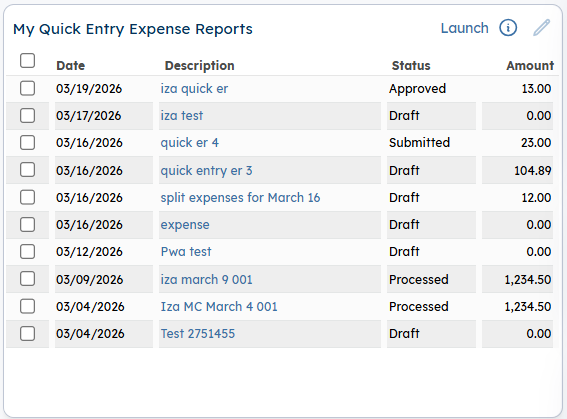
Each line on the dashpart represents a unique quick entry expense report, with details including the expense report date, expense report description, and the total expense amount (sum of all expense incurred amounts for a specific expense report ID). The current status of the quick entry expense report is also displayed, which can be any of the following:
- Draft
- Submitted
- Under Review
- Approved
- Processed
- Rejected
- Voided
By default, the dashpart displays 10 of your most recent quick entry expense reports in descending order by Date.
 is displayed but disabled.
Drill-Through
In the Description column, click a description link to open the Quick Entry Expense Report screen in Time & Expense and view additional details about that expense report. The screen opens directly to the record selected.
The other drill-through links on this dashpart include:
- Launch: This link displays only if you have not selected any checkbox corresponding to the quick entry expense reports. When you click this link, the Quick Entry Expense Report screen opens with the most recent quick entry expense report with a Draft status. If no record is in Draft status, the screen opens with a blank record.
- Launch Selected: This link displays only if you have selected one or multiple checkboxes corresponding to the quick entry expense reports that you want to view in Quick Entry Expense Report. You can select the checkboxes individually, or select the Select All checkbox (at the top of the first column) to select all quick entry expense reports. When you click Launch Selected, the Quick Entry Expense Report screen displays all the records you selected from this dashpart.