My Budgeted Hours Dashpart
The My Budgeted Hours dashpart compares planned hours against charged hours, enabling employees to track their progress on active projects more accurately.
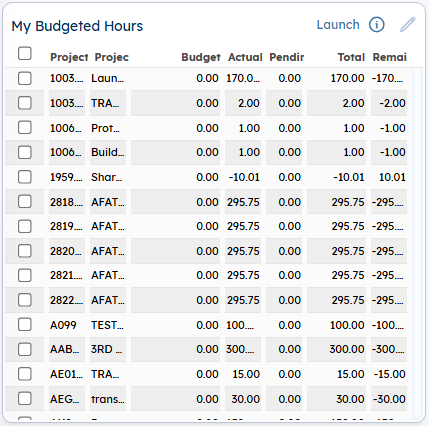
This dashpart includes the following columns:
- Project: This column displays the ID where the employee has budgeted hours, including IDs for assigned projects and other overhead categories such as PTO or holiday.
- Project Name: This column displays the name associated with the ID.
- Budget: This column displays hours budgeted for the next three periods, including the current one. These hours populate from either the final EACs or final Budget.
- Actual: This column displays the number of budgeted hours that have been posted. Hours populate from the Labor History tables.
- Pending: This column displays the total number of budgeted hours that are unposted (pending). This value populates from the Pending Report tables.
- Total: This column displays the total of the actual hours and the pending hours.
- Remain: This column displays the difference between the budgeted hours and the total hours.
Note: There are no editable settings for this dashpart.
 is displayed but disabled.
is displayed but disabled.
Drill-Through
The Launch link displays only if you have not selected any checkbox corresponding to the budgeted hours record. Launch Selected displays if you have selected one or multiple checkboxes corresponding to the budgeted hours records on the dashpart. Clicking either link opens the My Budgeted Hours - Details screen, where you can run a report that displays hours charged against budgeted hours for a given period.
Note: Depending on your security rights, Costpoint may display a message indicating that you do not have access to a drill-through application.