On the Navigation menu, click Administration » Alerts » Scheduled Alerts.
In the Scheduled Alerts form, select Projects in the Area field.
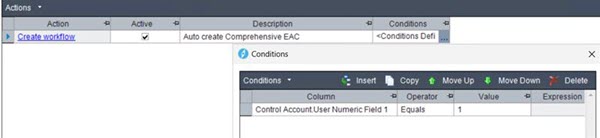
In the Alerts grid, click Insert to add a new row in the grid.
In the Alert Table column, select Control Account.
In the Description column, enter a description for the alert (for example, Auto create Comprehensive EAC workflow).
In the Conditions
column, click  to display
the Conditions
dialog box and set the conditions for the alert.
to display
the Conditions
dialog box and set the conditions for the alert.
Set the Column column to Project.Project.
Set the Operator column to Equals.
Set the Value column to the project for which you want to automatically create one Comprehensive EAC workflow per control account (for example, Inter-Planet Shuttle).
You must specify a Cobra project that contains the cost set selected on Cost Details on Form tab of Workflow Type Configuration. The default cost set is Prior EAC.
The conditions above will automatically create one Comprehensive EAC workflow for each control account in the specified project.
In the Actions grid, click Insert and select Create Workflow.
In the Create Workflow Configuration dialog box, do the following:
In the Workflow Type field, select Comprehensive EAC.
In the Title field, enter the workflow title.
Click OK and click Save.