
Formatting Data
The web client offers various formatting options for field elements, and those fields found in grids and tables. The following sections list the type of formatting available, and how it can be applied to a field directly, or indirectly via cascading formatting.
Field Formatting
Zero Suppression, Decimal Place formatting can be applied directly to fields displaying amount, integer and real values. In addition, short format and precision formatting can be applied to fields displaying integer and real values.
An example layout can be found within the web client at Tests/Layout/Cascading Format/Format Element.
Zero Suppression

Fields displaying amount, integer and real values can be configured to either enable or disable zero suppression. By default, values are not zero suppressed, so here the configuration can be used to enable zero suppression. The following listing shows how to enable zero suppresion for fields.
{
  "field": {
    "title": "No Zero Suppression",
    "source": "Field1"
  }
},
{
  "field": {
    "title": "Zero Suppression",
    "source": "Field1",
    "format": {
      "zeroSuppression": true
    }
  }
}
Short Format and Precision

Fields displaying amount, integer and real values by default do not use short format. It is possible to turn on short formatting entirely or override the precision per element. The screenshot above illustrates the various possibilities and the code listing below shows how this effect is achieved.
{
  "field": {
    "title": "No Short Format (default)",
    "source": "Field1",
  }
},
{
  "field": {
    "title": "Short Format",
    "source": "Field1",
    "format": {
      "short": true
    }
  }
},
{
  "field": {
    "title": "Short Format (precision=1)",
    "source": "Field1",
    "format": {
      "short": {
        "precision": 1
      }
    }
  }
},
{
  "field": {
    "title": "Short Format (precision=5)",
    "source": "Field1",
    "format": {
      "short": {
        "precision": 5
      }
    }
  }
},
Decimal Places

Fields showing values of the real data type can be formatted with 0 to 10 decimal places. To deviate from the defaul number 2, the following code can be specified.
{
  "field": {
    "title": "Specify decimals (decimalPlace=10)",
    "source": "Field1",
    "format": {
      "decimalPlaces": 10
    }
  }
}
Cascading Formatting
Formatting can also be applied at the global level in the Settings.json configuration file. These settings will affect all layout elements of the specified data type. In the example Setting.json file below, all real values displayed throughout the web client, will have zeroSuppression turned on. They can be overridden at layout levels down to, and including the element.
{
  "formatting": {
    "real": {
      "zeroSuppression": true
    },
    ...
  },
  ...
}
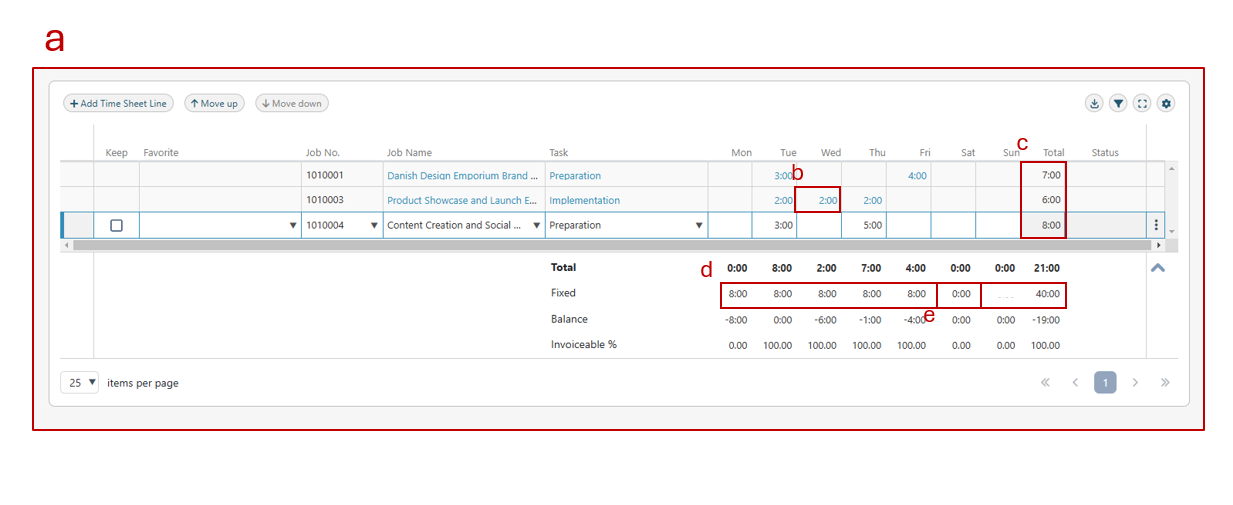
The web client also offers the opportunity to apply Cascading Formatting to the layout of your workspaces. A specific area or level can be targeted, with the formatting cascading down to all other areas/levels contained within. Formatting at a lower level overrides any formatting specified at any of the higher levels in a layout, including formatting specified globally in Settings.json. Currently, zero suppression, number of decimal places and short form & precision can be applied.
In the example below, formatting can be applied to the entire table (a), to a cell only (b), or to a column (c). In addition, formatting, such as suppressing redundant zeroes, could be applied to a summary line (d), and then overridden for a specific cell (e).
Further Examples
Further examples can be found within the web client under Tests/Layout/Cascading Format. These include layouts for formatting grids, tables and KPIs.