Navigating ConceptShare
Use the diagram in this section to familiarize yourself with the layout, menus, tabs, views, screens, and dashboards in ConceptShare.
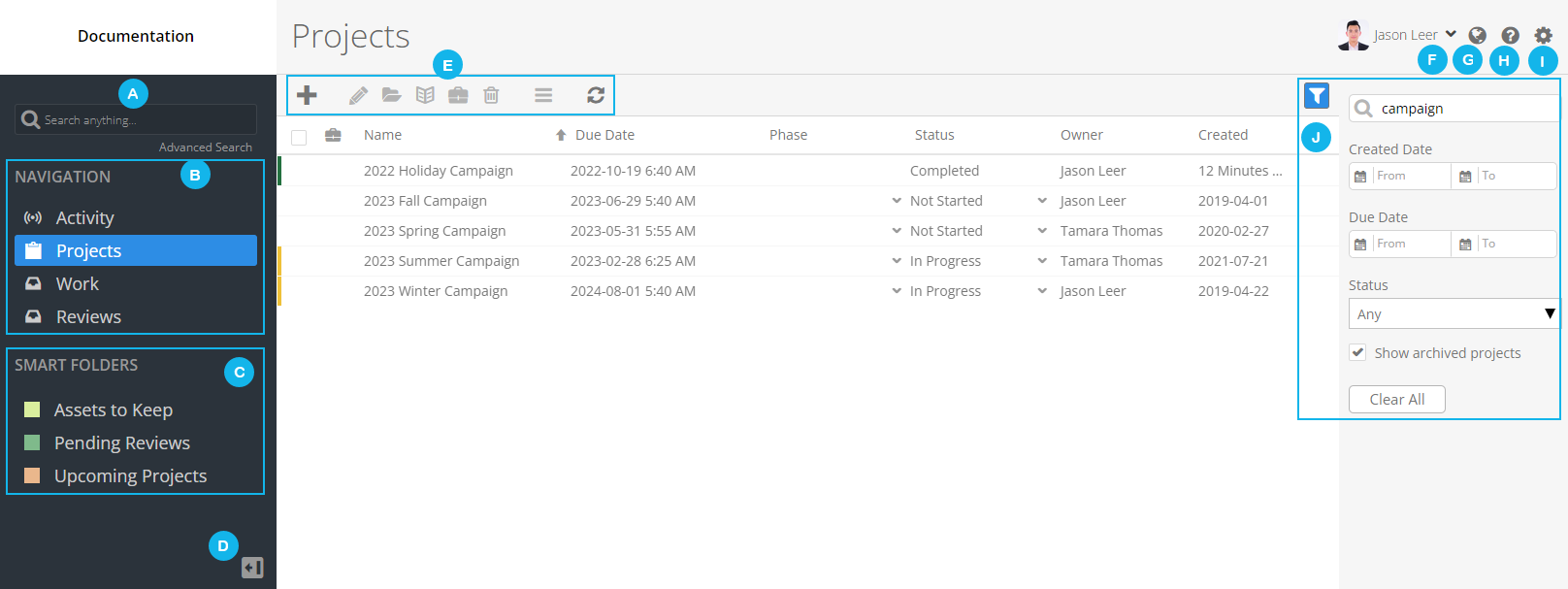
| Legend | Description |
|---|---|
| A |
Search Field. Use the Search field to perform simple and advanced searches. For more information, see Performing a Search. |
| B |
Navigation Panel. It contains the three main screens/dashboards in ConceptShare.
|
| C |
Smart Folders. Use the Smart Folder panel to access pre-configured searches. For more information, see Create a Smart Folder. |
| D |
Toggle Navigation Panel. Use toggle icon
|
| E |
Main Toolbar. Depending on where you are in ConceptShare, you can use the actions in the main toolbar to perform tasks.
|
| F |
User Settings. Use the User settings to customize Proofing Workspace settings, date and time formats, notifications, and asset render options. |
| G |
Language Settings. Use the Language settings to modify the application language. |
| H |
Help Menu. Use the Help menu to access the following:
|
| I |
Account Settings. Use the Account settings to customize the settings for the following:
|
| J |
Filter Panel. Click
Show filter panel
|
 to expand or collapse the Navigation panel.
 Edit
Edit Info
Info URL
URL Create Feedback Summary
 /Unarchive

 Delete
 Menu
Menu Refresh