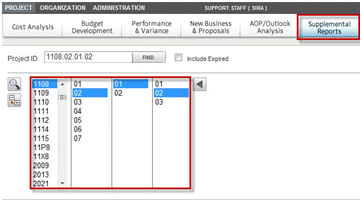
To access Job Summary Reports, complete the following:
Select the Supplemental Reports module.
Select Project as the management context.
Navigate to the lowest level of the project ID in the project navigation list boxes.
In Reports & Actions, select Active Level S.P.A.1 Job Summary.
The report header has the following information:
Click Budget or Latest EAC in C to determine what the report shows.
Click Target in A to show the costs as target costs, which is the default.
Click Actual in A to show the costs as actual costs.
Use the drop-down menu in B to select a Period Ending date for the report.
The area labeled D provides the administrative detail of the report that includes:
Customer
Prime Contract #
Subcontract #
Project Number
Project Name
Project Manager
Division Estimated Total Value
ITD Billed Amount
Open Rec. Amount
Job Type
Rate Type
Status
The green arrows labeled E enable you to move from one task to another, automatically re-submitting the report.
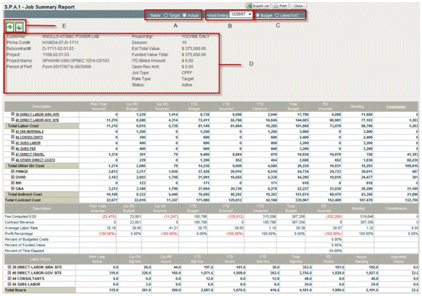
The body of the report shows the project’s direct and indirect costs with the burden elements broken out separately.
Labor hours, posted and unposted are line items, as well as the Contract Revenue, Average Labor Rate, Profit Percentage, Percent of Budgeted Costs, Percent of Funded Value and Percent of Time Elapsed.
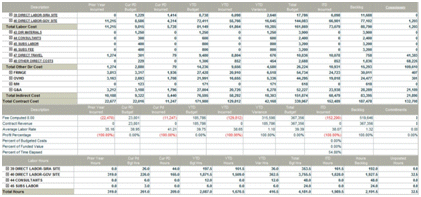
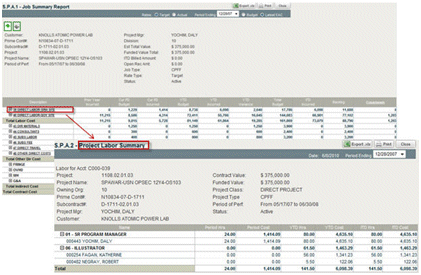
Click the Direct Labor link to see a Project Labor Summary report.
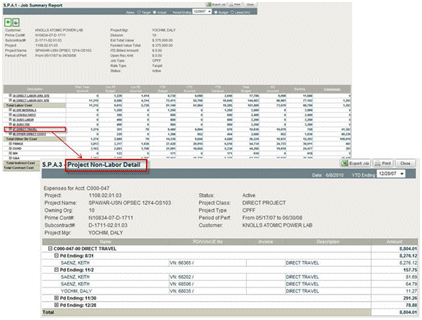
Click any non-labor cost description to open a Project Non-Labor Detail report to audit details of expended resources.
Click the Commitment header to drill down and audit commitment details.
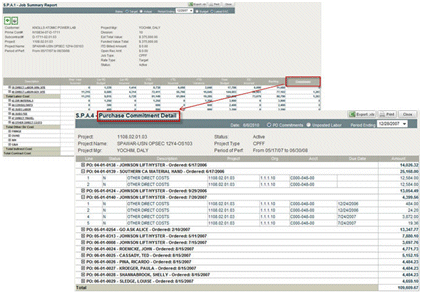
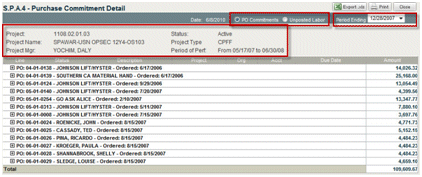
Select options in the Purchase Commitment Detail header.
Click to show PO Commitments.
Click Unposted Labor to see a listing of unposted time sheets.
Select a Period Ending date from the drop-down menu.
Notice the other report header information: Project number, Project Name, Project Manager, Status, Project Type and Period of Performance.