To manage user logon setup and maintenance, complete the following steps:
Launch GCS Premier© Budgeting & Planning.
On the Management Context toolbar, click Administration.
The Super Administrator screen displays.
Click User Setup and Maintenance.
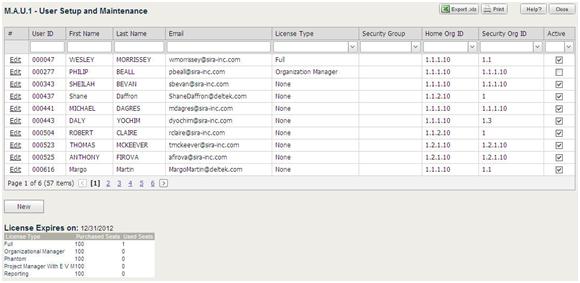
The User Setup and Maintenance screen displays.
Click Edit to change or delete the information for a specific user. The table expands to display the user's current information.
Change any of the information in the User Setup and Maintenance Fields displayed within the expanded table.
Click Update when the changes are complete.
Click New at the bottom of the table to add a new user. A blank form displays.
Take one of the following actions:
To add a user from employee records, use the Employee Name drop-down list to select the emplyee to add.
To add a user not from employee records, enter the user information directly in the fields.
Click Update when you have filled in the fields.
Click the Excel icon to export the user logon information.
Click Close to close the screen.