The Application Menu Options Bar (the menu bar under the toolbar) contains many of the menu options that were available in the Costpoint client/server menus, in addition to others that are new to Costpoint web.
The menu bar contains the following drop-down menus: File Menu, Line Menu, Options Menu, Process Menu, Workflow Menu, GoTo Menu, Window Menu, and Help Menu. The options available under each of these menus are described in the tables below.
|
Execute |
Populates a table window with records from the database that meet the user's criteria. If the user has entered no criteria (for example, when the screen is first opened), clicking on the Execute option will retrieve all available database rows permitted by the business rules. |
|
New Record |
Allows the user to enter a new record on the screen in either Form View or Table View. |
|
Clone Record |
Allows the user to create a new record containing the same information as an existing record. |
|
Save |
Saves the user's input to the database. |
|
Save and Continue |
Saves the user's input to the database, but does not clear the screen, so the user can continue working on the current record after the Save. |
|
Delete |
Marks a record for deletion. When the user chooses the Save option, any rows on the screen that have been marked for deletion will be deleted from the database. |
|
Undelete |
Reverses the effect of marking a record for deletion. |
|
Refresh |
Opens a menu of options for refreshing all or part of an open application. In general, refreshing returns an application to the state it was in when the user opened it, reversing any changes the user has made to records on the screen and restoring the records to the state they were in when they were first loaded from the database. |
|
Opens a dialog that allows the user to designate the delivery options for a report (whether the report will be printed by a printer, downloaded to the user’s computer, saved to a file, archived, or emailed). The user can also designate which pages of the report will be printed and which actions will be launched after the report prints. | |
|
Opens a dialog that allows the user to designate certain features of printed reports, such as layout, paper size, font, and margin widths. | |
|
Allows you to preview a report before printing it, using your selections in the Page Setup and Print Options dialogs. The down arrow opens a menu of reports available in the current screen context. | |
|
Prints a report showing data that meets your selection criteria, using your selections in the Page Setup and Print Options dialogs. The down arrow opens a menu of reports available in the current screen context. | |
|
Close Application |
Closes the open application, but does not end the login session. [The user can open another application without logging in again.] |
|
Log Off |
Terminates the user's login session with the system. After logging off, the user must log in again to use the system. |
|
New Record |
Allows the user to enter a new record on the screen in either Form or Table View. |
|
Duplicate Record |
Duplicates a record, but not its children. If the user wants to duplicate only one level of a record (at any level), the user should choose this option. |
|
Delete |
Marks a record for deletion. When the user chooses the Save option, any rows on the screen that have been marked for deletion will be deleted from the database. |
|
Undelete |
Reverses the effect of marking a record for deletion. |
|
Select Company |
Allows the user to switch to a different company after the initial login. |
|
Lookup |
Opens a dialog displaying a table of the values that are available for entry into a specific screen field. The user can either scroll through the displayed values or look up a specific value. When the user selects a value in Lookup, that value is transferred to the field from which the Lookup was launched. If the user is in a character field (non-numeric and non-date), the user can type in the first few letters of the data the user is looking up and it will automatically filter on this data. Note that Query is also available from Lookup. |
|
Query |
Populates an application with a result set of database records that are maintained by that application. The user can place filters on the Query to limit the result set to those records meeting specified selection criteria. |
|
First |
Allows the user to edit the first record in a queried result set. This option is enabled only in Form View. |
|
Previous |
Allows the user to edit the record immediately preceding the currently active record in a queried result set. This option is enabled only in Form View. |
|
Next |
Allows the user to edit the record immediately following the currently active record in a queried result set. This option is enabled only in Form View. |
|
Last |
Allows the user to edit the last record in a queried result set. This option is enabled only in Form View. |
|
Toggle View |
After the user has created a new record by cloning an existing record, this option allows the user to switch back and forth between the new record and the existing record. This is particularly useful for Form View only screens. |
|
Switch View |
Changes the current result set from Table View to Form View or changes the current result set from Form View to Table View. |
|
Reset Default Positioning and View |
Returns the objects on the screen to the position they were in when the application opened and returns the application to the view (Table or Form) it was in when the application opened. |
|
User Configuration |
Allows the user to customize the layout of a result set (screen) by user and save them so that such layout will be used for subsequent opening of such screen. All screens are available for customization. Currently, the feature is available only for saving the column order and column width of a screen in table view. |
|
Submit to Process Server |
Not currently implemented, but will allow the user to submit and schedule jobs in the Process server. |
|
Show/Hide Messages & Errors |
Allows the user to choose whether to see error messages or not.
|
|
Costpoint Homepage |
Not yet implemented.
|
|
Action Menu |
Opens a menu of available actions that the user can launch. |
|
Default Action |
Launches the default action in the current result set. |
|
Please see section on Window Menu, below. |
|
Workflow |
Allows the user to send out an e-mail notification that the user has completed some task using the open application. |
|
Menu Map |
Displays equivalent menu maps both from Costpoint web to Costpoint client/server and from Costpoint client/server to Costpoint web. |
|
Help |
Offers the user helpful information about the current application and links to other helpful information about related and special topics. |
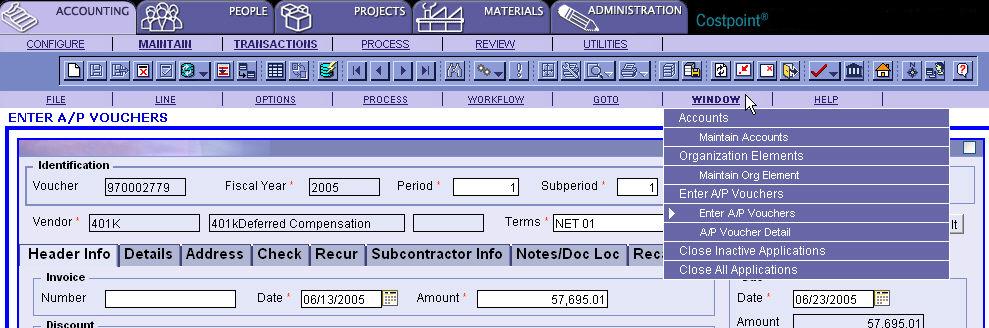
In Costpoint web it is possible to have multiple applications open at the same time. The Window menu (see screen print below) shows a list of all applications that are currently open and all result sets that are open within those applications. By clicking on the name of a result set listed on the Window menu, the user can activate the selected result set and its parent application. In this manner, the user can switch back and forth between multiple open applications. The white arrow on the left border of the menu indicates which result set is currently active.
The Window menu also includes two options for closing applications:
The "Close Inactive Applications" selection will close all applications except for the currently active application.
The "Close All Applications" selection will close all open applications and results sets.