Use the Expense Progress chart to view how the project's overall expenses are trending by expense type. This compares the JTD% against the remaining work on the project, which gives you a percent complete for the project. The colored indicators for each expense allow you to quickly analyze the individual progress, which you can then use to form comparisons against other expenses for the project. In addition, you can hover over the indicators for each expense to see the specific details for how the percentages were calculated.
Contents
As you select different WBS elements on the Expenses planning grid, amounts on the Expense Progress chart automatically update. The chart also updates to reflect any edits that are made to the plan when the plan is saved.
If your firm uses Vision Multicurrency, the currency amounts display in the project's billing currency or project currency. The currency is based on the
Use Billing Currency not Project Currency option in
.
Note: Under certain conditions, the Expenses planning page includes a toggle button that allows you to switch the grid from displaying bill to cost amounts. If set to
Cost, the Expenses grid updates to display cost amounts for baseline, planned, JTD, and ETC (Navigator). The progress chart above the grid updates to display cost amounts for JTD and ETC (Navigator). The chart title also updates to indicate
Cost is selected. See the View Expense Bill or Cost Amounts online help topic for more information.
| Field | Description |
|---|
| Expense Type
|
The expense types that are assigned in the Expenses planning grid display on the left side of the chart, with an associated progress bar for each.
|
| Expense Progress Bars
|
The JTD and ETC (Navigator) bars display what percent of the total planned bill or cost amount is complete as of today, and what percent of the planned bill or cost amount remains for each expense type.
- JTD: This percent represents the sum of all expense-related charges on posted transactions and committed purchase orders through today.
- ETC (Navigator): This is the percent of the plan that remains for completion through today.
ETC (Navigator) % = (ETC (Navigator)/(ETC (Navigator) + JTD)) * 100
You can view a summary of the percentages for each expense. For example, on the following project, Mileage is 31% complete.
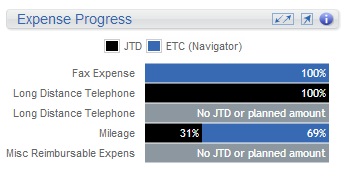
You can also hover over each expense's progress bar to view a summary of the amounts. For example, when you hover over Mileage, the respective JTD, ETC, EAC, and planned amounts and calculations display.
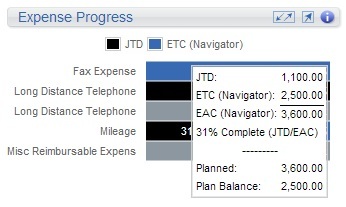
To complete this calculation, the EAC, JTD, and ETC amounts are pulled directly from the Expenses grid and then calculated as follows:
JTD = 1,100.00
ETC (Navigator) = 2,500.00
EAC (Navigator) = 3,600.00
% Complete = 31% (JTD/EAC)
ETC % = 69%
Note: If the JTD is greater than the planned amount, the Plan Balance amount displays in red to alert you that the project is trending to be over budget.
- If there are no expense types, the chart displays No expense data.
- If there is JTD but no planned amount, the bar displays
Nothing planned.
- If there is no JTD or ETC (Navigator) but the Expense Type displays in the grid, the bar is gray and the bar displays
No JTD or planned amount.
Note: There is a potential discrepancy in the ETC (Navigator) amount versus what displays for the ETC in Vision.
|