
Select Searches List
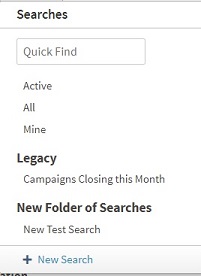
The Select Searches List includes all searches that are available for the active module. This list is made up of different components, depending on the application from which the Search is accessed.
The Select Searches List may include any of the following:
| Component | Search List | Function | Related Information |
|---|---|---|---|
| Quick Find | 
|
Use the Quick Find to enter part of a record's information, such as a name or number. If the information that you enter matches only one record in the database, the record opens. If the information produces more than one result, a list that includes all matching records displays. | Use a Quick Find |
| Standard Searches | 
|
Standard searches are predefined searches that are specific to the active module and cannot be modified. The are usually listed at the top of the Select Searches List. For example, in the Contacts hub, the standard searches are Active, All, and Mine. | Standard Searches |
| Legacy Searches | 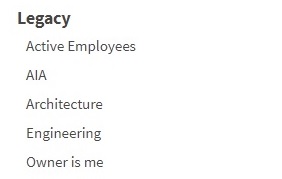
|
Legacy searches are imported from previous versions of the application or from legacy systems and cannot be modified. You can run a legacy search as needed or delete and build a new search based on it. | Legacy Searches |
| Custom | 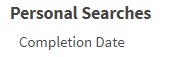
|
Custom searches are standard or advanced searches that you create to match your business requirements. You can use the Organize Searches feature to create custom folders in which to save your searches. For example, a "Personal Searches" folder to save searches that only you will use. | |
| Reports Included | Use the
Records Included list in the Reporting application to select a record search or open
 Search to create a new record search. Search to create a new record search.
The Records Included list appears as a filter and as a record search selection list in the following areas of the Reporting application:
|
||
| + New Search | You can create a new search for Hub records, report fields, and other application records. Use both basic and advanced search features on the New Search dialog box to refine search criteria. |
 to select a record search or