|
|
|
|
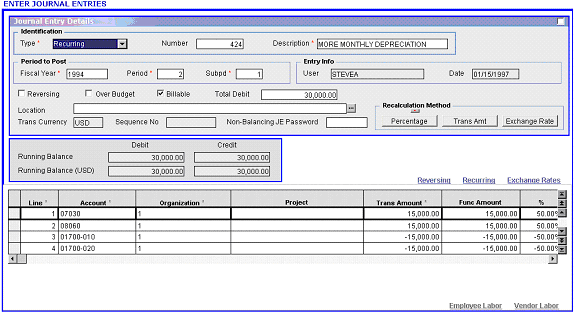
In a typical Costpoint web screen, some fields are available for data entry and others are non-editable.
Editable (input) fields have a white background.
You can populate these fields manually, via Lookup, or through the use of drop-down boxes, checkboxes, or radio buttons.
Some editable fields may require completion and validation before you can save the screen data.
Conditionally editable fields also have a white background.
These fields have an identical appearance to editable fields, with a white background. Based on other data or system settings, however, they are disabled. You can select conditionally editable fields but you cannot enter them or make changes.
Non-editable fields have a shaded background that matches the screen background color.
When you tab through the screen fields, the system skips over non-editable fields.
Some non-editable fields have Lookup functionality even though you cannot populate them directly. This feature allows you to view additional information about the field.
If some of this information is displayed in a column with a popup text icon, you can click on it to access the expanded window. This will enable you to highlight the text to copy it for use in another field or elsewhere.
