
Work with Records in Kanban View
Use Kanban view to review and manage records visually as the records move through a process. Kanban view organizes records as cards in columns based on a field configured for the application, such as a status, stage, or date. It is available as an additional view option alongside Table and Form views.
Currently, Kanban view is available in the following applications:
Manage Opportunities
Manage Opportunity Proposals
In these applications, Kanban view organizes opportunities and proposals by Capture Stage. Additional Costpoint applications may support Kanban view in future releases. The columns, card information, and available board elements may vary by application.
Display Kanban View
To display Kanban view:
Open an application that supports Kanban view.
Run a query to display the records that you want to review.
On the view selector, click the Kanban View icon.
When you switch to Kanban view, Costpoint retains the active query filters and sort order from Table or Form view. If you switch from Kanban view to another view, Costpoint preserves the query context in the destination view.
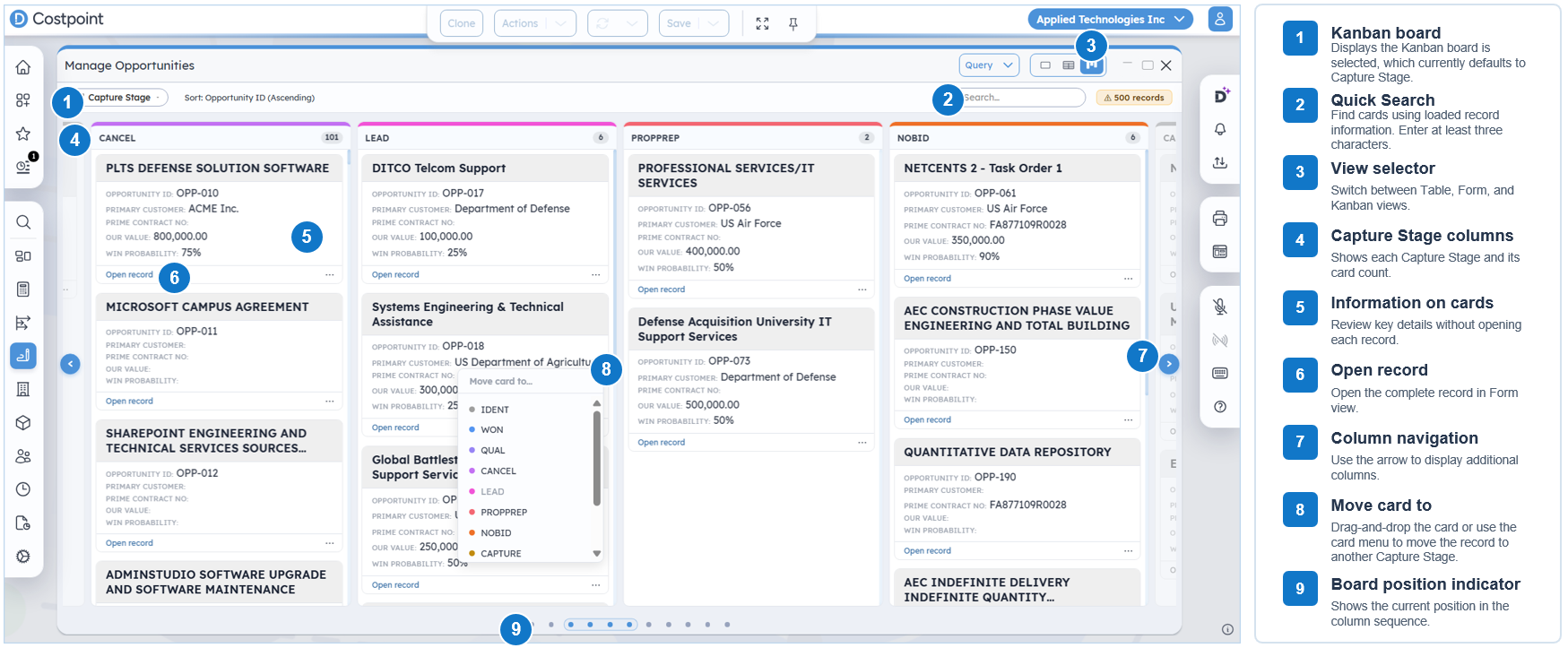
Kanban View Components
The numbered callouts in the image identify the following components:
Kanban board: Displays the Kanban board selected, which currently defaults to Capture Stage. In a future Costpoint release, you will be able to change this to a different Kanban view or create your own Kanban view. The Sort field on the right displays the order applied to the records on the board.
Quick Search: Searches the information in the cards currently loaded on the board. Search begins after you enter at least three characters.
View selector: Switches between Table, Form, and Kanban views.
Columns: Organize records based on a field configured for the application. Each column header displays the column name and the number of cards in the column. For example, Manage Opportunities and Manage Opportunity Proposals organize records by Capture Stage. In a future Costpoint release, columns will be specific to each Kanban view, and you should be able to select which field to use for the column.
Information on cards: Displays key information about each record. The information displayed varies by application and board.
Open record: Opens the complete record in Form view.
Column navigation: Displays additional columns when all columns cannot fit on the screen.
Move card to: Moves the record to another column. You can also drag and drop the card to move it to another column.
Board position indicator: Shows your current position in the column sequence when the board contains more columns than can fit on the screen.
Find a Record
Use Quick Search to find records using the card information currently loaded on the board.
To find a record:
In the Search field, enter at least three characters.
Review the matching cards.
Kanban view hides cards that do not match the search and keeps matching cards visible in their respective columns. Quick Search searches the loaded card information and does not run another application query. The fields included in the search vary by application.
Open a Record
To open the complete record:
- Locate the applicable card.
- Click Open record.
Costpoint opens the record in Form view, where you can view or edit the complete record.
Move a Record to Another Column
Moving a card to another column updates the field used to organize records on the board. For example, moving an opportunity or proposal card to another Capture Stage column updates the record’s Capture Stage.
You can move one card at a time using either of the following methods:
Drag and drop the card to another column.
Open the card menu and select a destination under Move card to.
You cannot manually reorder cards within the same column. The active sort order determines the position of cards in each column.
When you move a card, Costpoint performs the standard save validations:
If the move succeeds, the card displays in the destination column, and Costpoint displays a success notification.
If the move fails, the card returns to its original column, and Costpoint displays an error notification describing the failure.
After a successful move, the card counts in the affected columns are updated. The remaining cards in the original column move up and retain their sort order.
Navigate Between Columns
When the board contains more columns than can fit on the screen, use the left and right navigation arrows to display additional columns. Each arrow moves the board by one column. The board position indicator shows your current position in the column sequence.
Column headers remain visible when you scroll vertically through the cards. Each header displays the column name and the number of cards currently included in the column. The card count is updated when a card moves to or from the column.
Work with Record Cards
Each card displays a title and key information about the record. The fields and labels displayed on the cards vary by application and board. Longer titles or field values may be truncated and displayed with an ellipsis.
Clicking a card selects it. You can select only one card at a time. Click the selected card again to clear the selection.
Work with Large Result Sets
The Kanban board loads records up to the limit configured for the board. If the query returns more records than the board can display, a notice in the board header shows the number of records displayed compared with the total number of available records.
Refine the active query to reduce the result set and display the records most relevant to your work.
Actions Not Available in Kanban View
You cannot perform the following actions directly in Kanban view:
Create, delete, copy, or clone records
Edit fields directly on a card
Access subtasks or child record sets
Use application action toolbar buttons
Use the bottom navigation and action buttons available in other views
To perform these actions, click Open record to open the record in Form view, or use the view selector to switch to another supported view.